Superpowers
Board
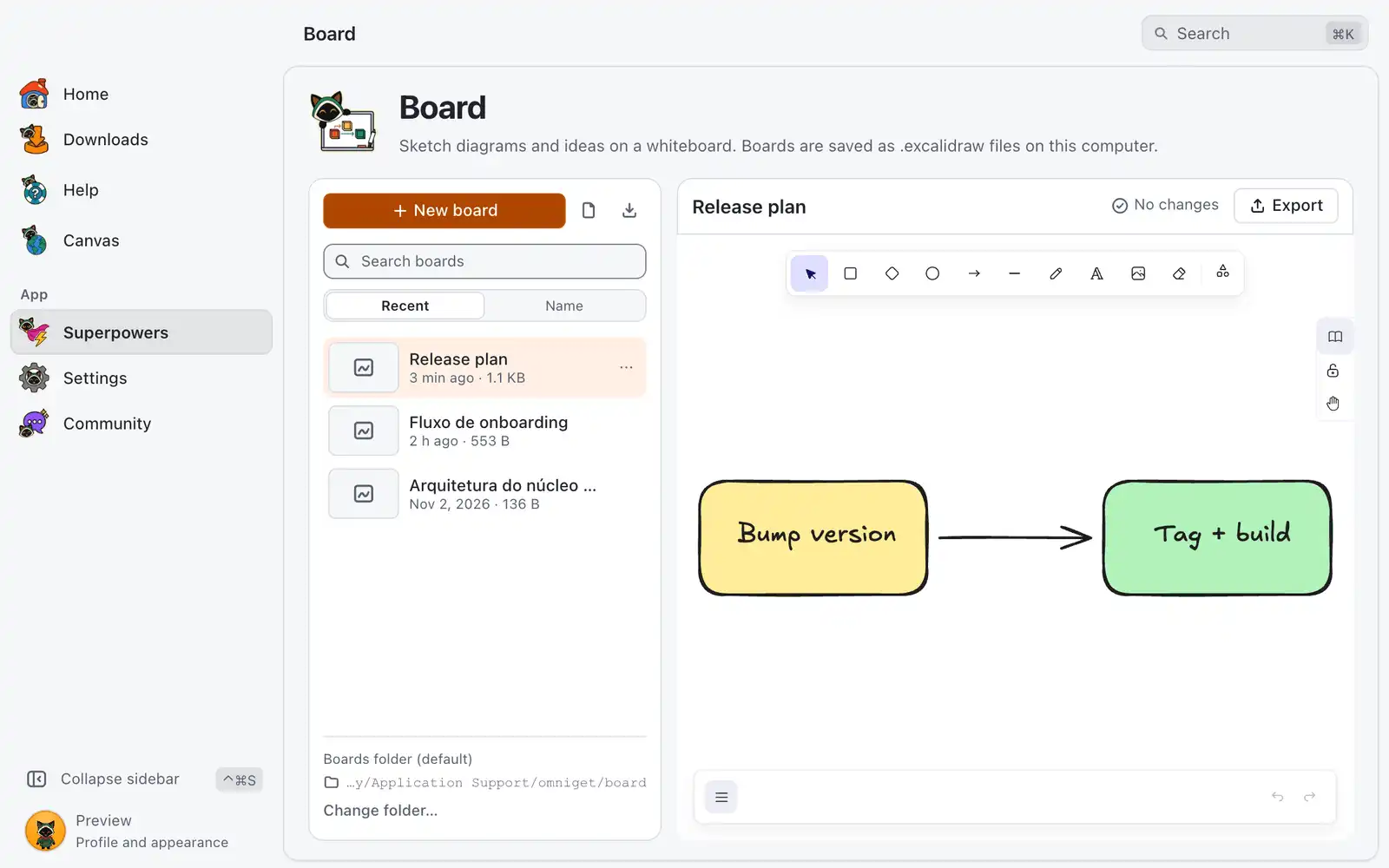
Board is a whiteboard for boxes, arrows, handwriting and images, built on the Excalidraw editor. Each board is a plain .excalidraw file on your computer, so it also opens in Excalidraw itself.
Where it is
Superpowers › Board › Open, in the Design category. The card is always shown: there is no switch for it in Settings › Integrations. The page has the Boards list on the left and the whiteboard on the right.
How to use it
- Click New board, or pick a board from the list.
- Draw. The editor follows the app’s light or dark mode and language.
- Type a name in the board title to rename it.
- Wait for Saved next to the title before you leave. The board saves by itself about 1.5 seconds after your last change, and ⌘SCtrl+S saves right away.
- Click Export to get an image or a copy of the file.
Boards
The list shows every board in your boards folder, with a thumbnail and when it last changed. Search boards filters by name, and Sort boards orders by Recent or Name.
Each board has a menu with Rename, Duplicate, Show in folder and Move to Trash. A deleted board goes to your system’s Trash, or to a .trash folder inside the boards folder when the Trash is not available, and the notice that follows has Undo.
Files you already have
- Import into library… copies
.excalidrawfiles into your boards folder. - Open file… edits a file where it is, without copying it. The page shows its path while you work.
Boards folder
Boards live in a folder inside the app data folder. Change folder… points the list at another folder, for example one that you sync or keep in a project, and Use default folder goes back.
Save status
| Status | What it means |
|---|---|
| No changes | The board is the same as the file. |
| Unsaved changes | A change is waiting for the next save. |
| Saving… | The file is being written. |
| Saved | The file has your latest changes. |
| Not saved | The save failed. The reason is shown, with Retry and Save a copy…. |
When a save fails, your changes stay in the window and OmniGet keeps retrying. Do not close the app until it says Saved, or save a copy somewhere else.
Export
| Option | What it does |
|---|---|
| Format | PNG, SVG or a copy of the board file. |
| Scale | The size multiplier of the image. |
| Include background | Keeps the board background; off gives a see-through image. |
| Dark mode | Exports with the dark colors. |
Export PNG… and Export SVG… ask where to save. Copy PNG puts the image on the clipboard, ready to paste. Save copy… writes a copy of the board that opens in Excalidraw or OmniGet. An empty board has no image to export.
Shortcuts
| Keys | What they do |
|---|---|
| ⌘SCtrl+S | Save the board now |
The drawing shortcuts inside the whiteboard are the ones of the Excalidraw editor.
Common problems
“Not saved”
The disk refused the write, or the folder went away. Click Retry, or Save a copy… to put the board somewhere else. If you try to leave, OmniGet stops you first and offers Discard changes and continue.
“The boards folder isn’t available”
It may be on a drive that is disconnected, or it was moved or deleted. Reconnect it, choose another folder with Change folder…, or click Use default folder.
A name is refused
A name cannot be empty, cannot contain / \ : * ? " < > |, cannot start or end with a dot, and can have up to 120 characters. Two boards cannot share a name.
“This isn’t a valid Excalidraw file”
The file is not an Excalidraw scene, or it is damaged. Files larger than 256 MB are not opened.
“The whiteboard editor didn’t load”
Reload the page to try again.