Superpowers
PDF puts the pages of your PDFs on one screen so you can merge files, take pages out, rotate them or change their order. It can also make a PDF smaller and turn a folder of images into a PDF. Everything runs on your computer: no file is uploaded, and the originals are never changed.
Where it is
Open Superpowers in the sidebar and choose the PDF card. The card is always shown: there is no switch for it in Settings › Integrations › Superpowers. The page has three tabs: Organize and merge, Make smaller and Images to PDF.
Organize and merge
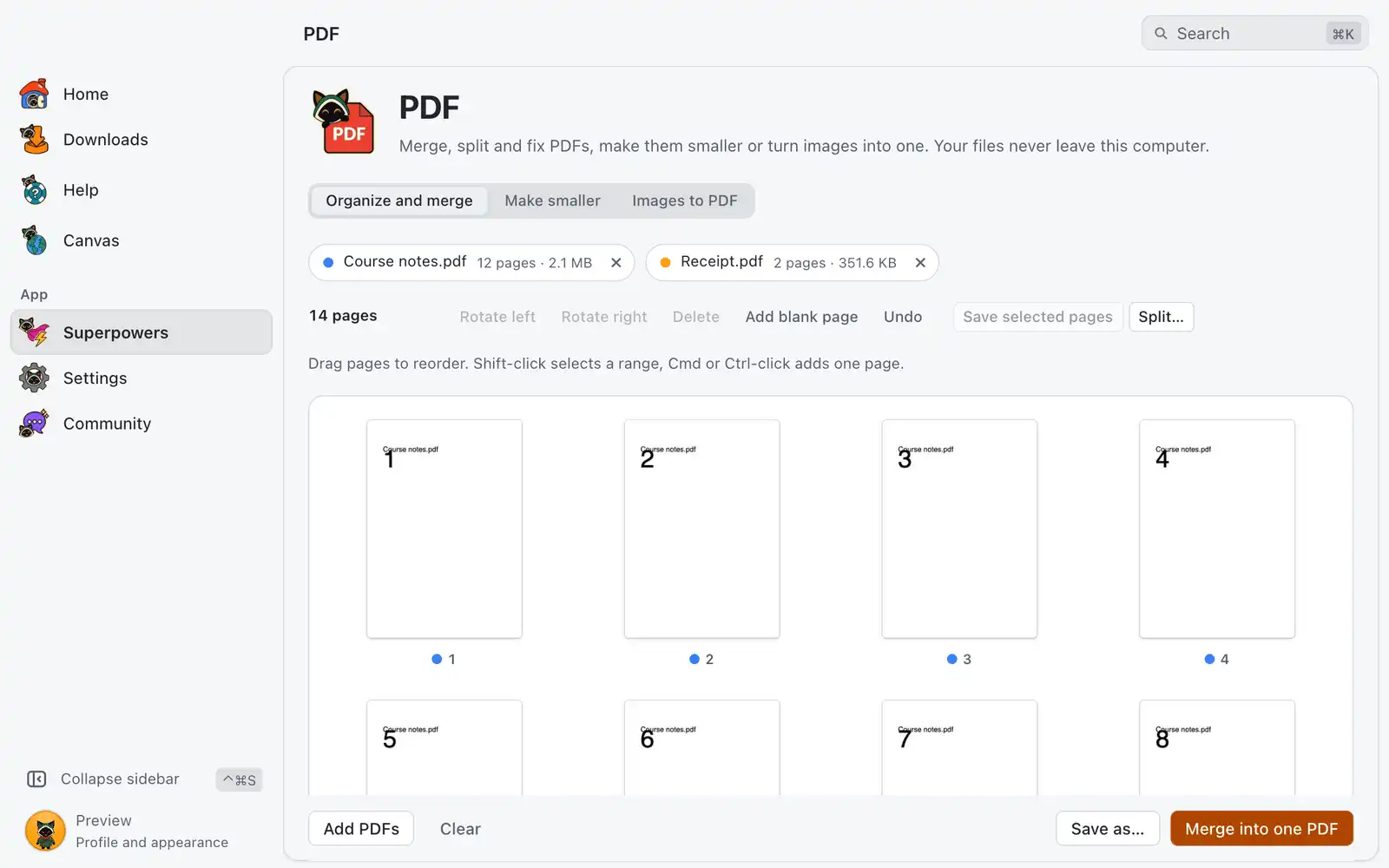
- Drop one or more PDFs on the page, or click Choose PDFs. Each page shows as a thumbnail. With more than one file, a colored dot shows which file a page came from.
- Change the pages:
- Reorder: drag the pages. With the keyboard, select a page and use ⌥←Alt+← and ⌥→Alt+→.
- Select: click a page. Shift-click selects a range, Cmd-click (Ctrl-click on Windows and Linux) adds one page, and ⌘ACtrl+A selects all.
- Rotate and delete: use the buttons that appear on a page, the bar at the top, or the keys R, ⇧RShift+R and ⌦Delete.
- Add blank page: adds a page after the selection (or at the end), the same size as the page next to it.
- Undo: the Undo button or ⌘ZCtrl+Z.
- Save:
- Merge into one PDF (or Save as new PDF with one file) writes a new file in the folder of the first PDF. If the name is taken, a number is added, like
Notes (edited) (1).pdf. - Save as… lets you pick the name and folder. If you pick the name of one of the open PDFs, OmniGet asks before replacing it.
- Save selected pages creates a PDF with only the pages you selected.
- Split… creates one file every N pages, or one file per range, like
1-3, 4-10, 11-. A range that ends in a dash, like11-, goes to the last page.
- Merge into one PDF (or Save as new PDF with one file) writes a new file in the folder of the first PDF. If the name is taken, a number is added, like
Bookmarks, links between pages, form fields and attachments are kept.
Make smaller
- Open Make smaller and drop PDFs.
- Choose how much smaller:
| Level | Best for |
|---|---|
| Light | Best quality. Good for printing. |
| Balanced | Good on screen, much smaller. Good for email and WhatsApp. |
| Smallest | Smallest file. Pictures lose detail. |
- Click Make smaller.
OmniGet saves the pictures inside the PDF again at a lower size; text and drawings stay sharp. The result is a new file next to the original, with (smaller) in its name. If the file would not get smaller, nothing is written and the row says so. PDFs made only of text are usually small already.
Images to PDF
- Open Images to PDF and drop images or a whole folder, or click Choose images or Choose a folder. JPG, PNG, WebP, GIF, BMP and TIFF work.
- Check the order. Files are sorted by name the natural way, so
2.jpgcomes before10.jpg. Drag them, or use Move earlier and Move later. - Pick the Page size (Same as the image,
A4or Letter) and whether to Leave a white margin. - Click Create PDF.
Phone photos come out the right way up, and JPGs go in without losing quality.
Open a PDF from another place
The page opens files passed in its address: /pdf?open=<path> opens a PDF in Organize and merge (repeat open for more files), and /pdf?tab=compress&open=<path> opens it in Make smaller.
Common problems
“This PDF is locked with a password”
PDF does not open files that need a password to read. Open the file in a PDF reader, save a copy without the password, and drop that copy.
“This PDF is damaged and couldn’t be read”
The file is broken or not finished downloading. Try to open it in another reader; if it opens there, print it to a new PDF and use that.
A digital signature stopped being valid
A signed PDF can’t be changed without breaking the signature. The new file is not signed; the original keeps its signature.
A scanned PDF has no selectable text
PDF does not recognize text in scans (OCR) yet.