Superpowers
Photos
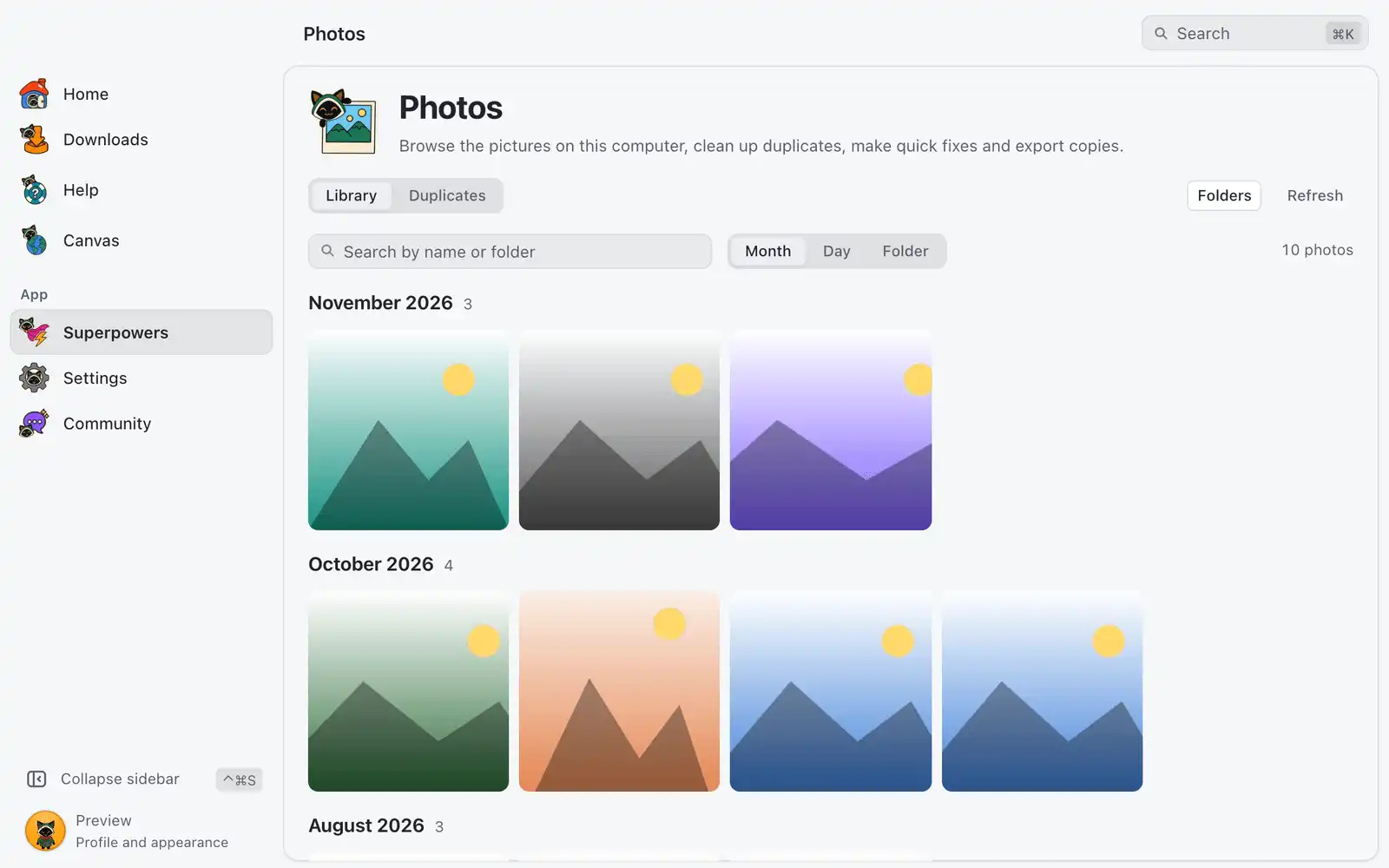
Photos is a gallery of the pictures already on your computer. It opens JPG, PNG, WebP, GIF, BMP, TIFF and TGA, iPhone photos (HEIC), JPEG XL, Photoshop files (PSD, PSB) and camera RAW, and everything happens on your computer: nothing is uploaded.
Where it is
Open Superpowers in the sidebar and choose the Photos card. The card is always shown: there is no switch for it in Settings › Integrations › Superpowers. The page has two tabs: Library and Duplicates.
How to use it
- Open Photos. The first time it looks in your OmniGet downloads folder and in your system’s Pictures folder.
- Click Folders to add or remove folders, then Save. Subfolders are included; hidden folders (names starting with a dot) are skipped.
- Wait while it shows Looking through your folders… and then Making previews. You can keep using the page. Stop pauses it, and Refresh picks up where it stopped.
- Click a photo to open it, or select photos to Move to…, Delete… or Export.
Previews are kept, so the next time only new or changed files are read. Removing a folder from the list only hides it from Photos: your files stay where they are.
The library
- Group by sorts the photos by Month, Day or Folder. The date is when the photo was taken, if the file says so, or else when the file was last changed.
- Search filters by file name or folder.
- To select, click the round checkbox on a photo, or Cmd-click it (Ctrl-click on Windows and Linux). Shift-click selects a range. Hover a group title for Select all.
Duplicates
Open Duplicates and pick how alike the photos must be:
| Option | Finds |
|---|---|
| Same photo | Exact copies, and the same photo saved again in another size or format. |
| Look alike | Also shots that look alike, like a burst or a retake. Check before deleting. |
In each group the best copy (more pixels, then the larger file) is marked Best and kept; the others start marked for removal. Click the checkbox on a photo to change that. Remove shows how much space you get back and asks before doing anything.
Deleting and moving
Deleted photos go to the trash, so you can put them back. Tick Delete for good instead of moving to the trash to skip the trash; this can’t be undone. Moving never replaces a file: if the name is taken in the destination, a number is added, like IMG_0421 (1).jpg.
Quick fixes
Open a photo to change Exposure, Contrast, Saturation and Warmth, Rotate left or Rotate right, and Crop, free or with a fixed shape (Original, 1:1, 4:3, 3:2, 16:9). Double-click a slider to put it back to zero. Hold Hold to see original to compare.
Your original file is never changed. Adjustments are saved in OmniGet, the photo is marked Edited in the gallery, and they are used when you export. Undo all clears them.
Exporting
Select one or more photos and click Export, or click Export in a photo you opened.
| Option | What it does | Default |
|---|---|---|
| Format | JPG, PNG, WebP or TIFF. WebP is saved without quality loss, so files can be large. | JPG |
| Quality | JPG only. 85 to 90 looks the same as the original for most photos. | 88 |
| Size | Original size, or the longest side at 3840, 2560, 1920, 1280 or 800 pixels. Photos are never enlarged. | Original size |
| Save to | Same folder as each photo, or a folder you choose. Exports never replace a file. | Same folder as each photo |
| Include my adjustments | Shown when one of the photos has adjustments. | On |
Shortcuts
| Key | What it does |
|---|---|
| ← / → | Previous or next photo, in an open photo |
| R / ⇧RShift+R | Rotate right or left, in an open photo |
| Space | Hold to see the original |
| ↩Enter / escEsc | Apply or cancel the crop; escEsc also closes the photo |
Common problems
A photo shows a crossed-out picture
OmniGet couldn’t read it. Hover it to see why. Files over the Converter limits (256 MB for HEIC and JPEG XL, 512 MB for RAW, 200 megapixels for any picture) are skipped.
“OmniGet doesn’t support this camera’s RAW files yet”
The camera is newer than the RAW reader. Export a DNG from the camera’s app.
Some photos couldn’t be changed
They may be open in another app, or the folder may be read-only.
The date is wrong
The file has no date taken, so Photos uses when the file was last changed. Messaging apps often strip the date taken.
Photos from an external drive still show while it’s unplugged
Photos keeps them, and your adjustments, until the drive is back. To drop them, remove that folder in Folders.