Superpowers
GitHub
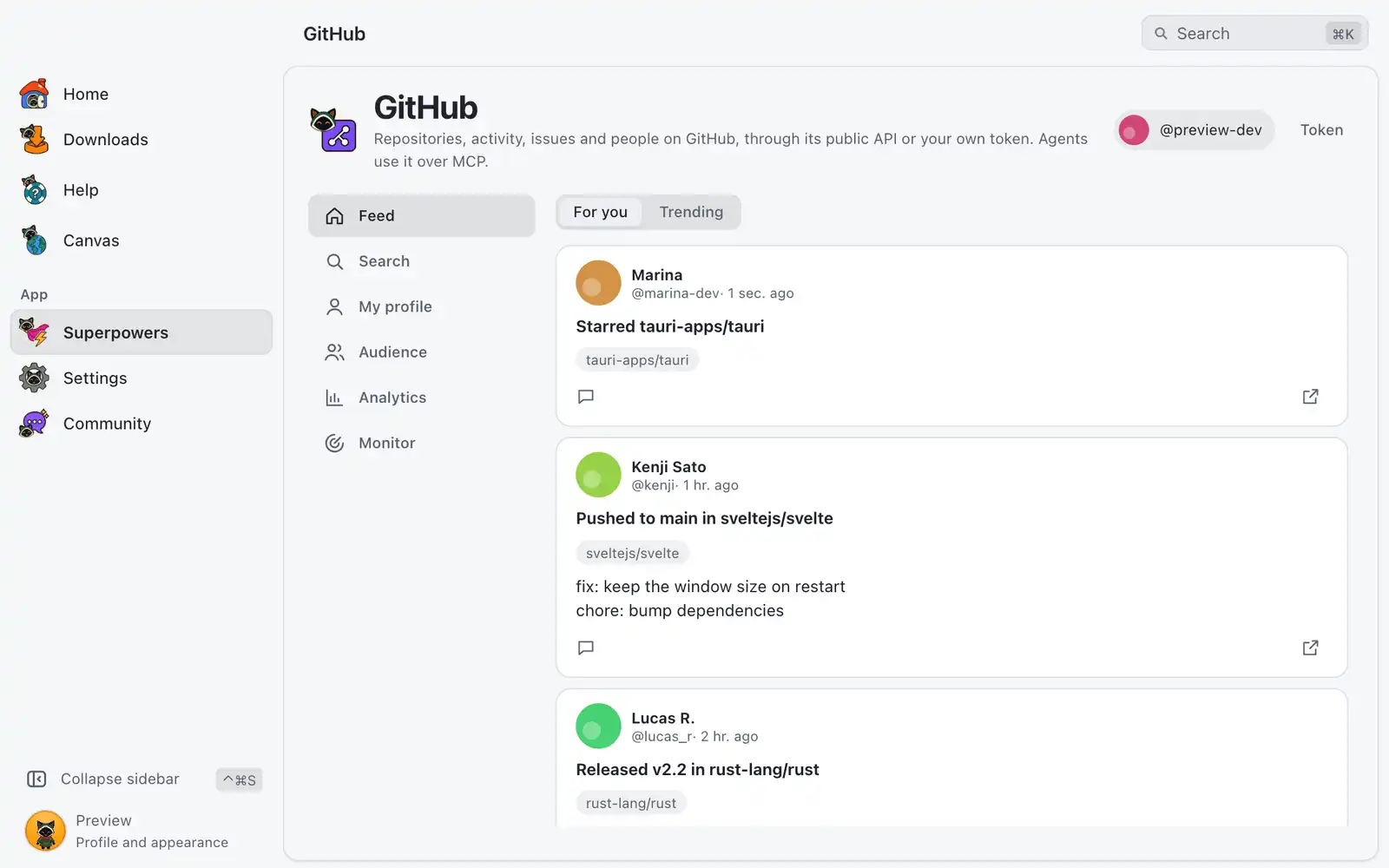
The GitHub superpower follows repositories, activity, issues and people on GitHub. Unlike the other social clients it does not use the browser: it talks to GitHub’s public API, with only a username for reading or with your own token to act as your account.
Where it is
Superpowers › GitHub › Open. The card is always shown: there is no switch for it in Settings › Integrations.
After you connect, the tabs on the left are Feed, Search, My profile, Audience, Analytics and Monitor. The Token button at the top reopens the connection screen.
How to use it
Connect GitHub
The Connect GitHub screen gives two ways:
- Personal access token: choose Create a token on GitHub, paste it in Paste the token and choose Save token. OmniGet checks it with GitHub before saving. With a token you act as your account and GitHub allows 5,000 requests an hour.
- Username (read only): type a username and choose Use this username. You can browse and search public data at 60 requests an hour, but not star, follow, comment or read notifications.
The token is kept in this computer’s secure storage. Agents never see it and no tool takes it as an argument. Remove the saved token deletes it. Give the token only the permissions you need on GitHub, and revoke it there if you stop using OmniGet.
Browse
- Open Feed and pick For you (the activity GitHub shows your account) or Trending.
- Open Search, type in the search box (for example
language:rust stars:>100) and pick Repositories, Issues and PRs or People. GitHub’s search qualifiers work. - Click a repository, an issue or a person to open it. Open in the browser opens the same thing on GitHub.
Feed, Search and profiles
- A repository shows its language, stars and forks. With a token, the star button stars it or removes your star.
- An issue or pull request opens with its comments. With a token you can write a comment.
- A person or organization opens as a profile with the number of public repositories, and Follow or Unfollow when a token is saved.
- Trending reads GitHub’s public trending page, which can change without notice.
Audience
Audience has two modes.
Your followers. Choose Sync, then a view: Don’t follow back, Unfollowed you, New followers, Fans, Mutuals, Followers, Following, Keep list, Hidden or Trend. Search, Filters, Quick filters and Export CSV work as in the other networks.
Stargazers of a repository. Type the repository as owner/name, or paste its GitHub link, and choose Open. Sync then reads who starred that repository instead of your followers, with three views:
- Stargazers: accounts that starred this repository, as last read.
- New stars: stars gained between two syncs.
- Un-starred: accounts that removed their star, with the two syncs it happened between. The exact moment is not known.
The list shows right away; new and removed stars appear from the second sync on. Back to followers leaves this mode. It works for any public repository, which is useful for your own projects.
Analytics
- Leave Account empty for your own account, or type another user or organization.
- Choose Analyze, then a report: Summary, Posts, Best times, Trend, Repositories or Compare.
On GitHub the reports count public events. Best times shows events by weekday and hour. Repositories lists public repositories with Stars, Forks, Open issues, Last push and Language, and the totals on top; open issues include open pull requests. Compare takes up to 4 other accounts. Export CSV saves the report.
GitHub’s API only returns recent public events, so older activity is listed under What a browser session cannot see and is not estimated.
Monitor
- Choose New monitor and pick What to monitor: Repository search, Issue and PR search, Releases of a repository or Issues of a repository.
- Type the search with qualifiers, such as
is:pr is:open repo:owner/name, or the repository asowner/name, and choose Save. - Choose Check now or Check all now, then read what was found, with Unread only and Mark all read.
With a token saved, Notifications shows your GitHub notifications as an inbox. You can keep up to 50 monitors. Check automatically can be Off or every 5, 15, 30 or 60 minutes, and checks run only while this tab is open or when an agent asks for one. Each check spends requests from your hourly allowance.
For AI agents
Agents connected through the MCP server get the gh_* tools plus the shared social_* tools. social_status tells them whether GitHub is connected by token, by username or not at all.
- Reading:
gh_me,gh_user,gh_feed,gh_user_posts,gh_repos,gh_repo,gh_search,gh_issues,gh_releases,gh_forks,gh_stargazers,gh_followers,gh_following,gh_trending,gh_notifications(token), the audience views andgh_analytics. - Acting, only with a saved token:
gh_star,gh_watch,gh_follow,gh_commentandgh_issue_create.
If you turned on Ask me first (under What other programs can do in Settings › AI & agents), each action waits in the OmniGet window with Approve and Deny. A request expires after 5 minutes and a denial is final for the agent. With or without it, agents are held to 20 actions on GitHub every 10 minutes, at least 4 seconds apart. Issue text, comments and READMEs are outside content, which agents should treat as untrusted.
Common problems
Requests stop with a rate limit message
Without a token GitHub allows 60 requests an hour, and a sync of a large repository’s stargazers can use them up. The message says when the limit resets. Save a token for the higher limit, or wait.
Star, follow and comment are missing
Those need a token. Choose Token at the top and save one.
The token is refused
OmniGet checks the token with GitHub before saving it. Create a new one with Create a token on GitHub, copy it whole and check that it has not expired.
“Type the repository as owner/name or paste its GitHub link.”
The stargazers box needs both parts, for example the owner and the repository name separated by a slash.
Trending is empty
Trending reads a public page that GitHub changes from time to time. Update OmniGet when a new version is out.