Superpowers
Converter
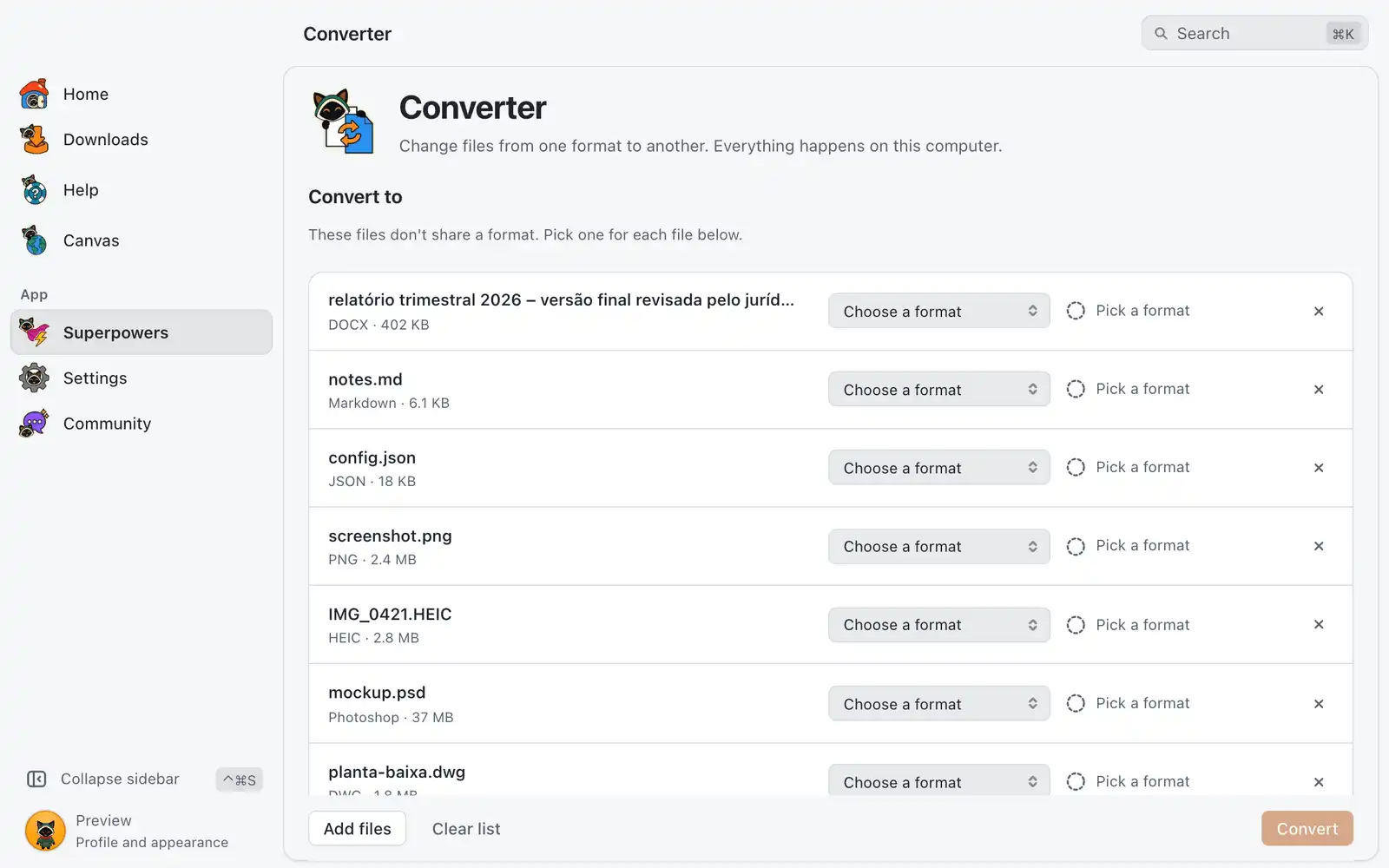
The Converter changes files from one format to another, one file or a whole batch at a time. It works on your computer, and your files are not uploaded.
Where it is
Open Superpowers in the sidebar and choose the Converter card. The card is always shown: there is no switch for it in Settings › Integrations › Superpowers.
How to use it
- Drop files on the page, or click Choose files. To add more later, drop them again or click Add files.
- Under Convert to, click a format. It applies to every file in the list.
- To send one file somewhere else, pick a format in that file’s row. The row’s menu starts on Same as above or Choose a format.
- Click Convert (the button shows how many files will run).
- When it ends, click Show in folder, or Convert more to start a new list.
Stop ends the run. Files that were not finished show Stopped, and Convert picks up the rest.
Each row shows the route it will take and the tool behind it, for example Markdown → HTML · Built-in. A route can pass through another format. A format marked lossy may lose quality or detail on the way.
A file already in the format you chose is skipped, not copied, and its row says so.
Formats and tools
| Category | Formats |
|---|---|
| Data | JSON, JSON Lines, YAML, TOML, CSV, TSV, XML, Property List |
| Documents | Markdown, HTML, Plain text, Word, OpenDocument Text, Rich Text, EPUB, PDF, LaTeX, reStructuredText, Org |
| Images | PNG, JPG, WebP, GIF, BMP, ICO, TIFF, TGA, SVG, AVIF, HEIC/HEIF, JPEG XL, Photoshop (PSD, PSB), camera RAW (CR2, CR3, NEF, NRW, ARW, DNG, RAF, ORF, RW2, PEF, SRW) |
| Drawings | DXF, DWG |
| Audio | MP3, M4A, AAC, WAV, FLAC, Ogg Vorbis, Opus |
| Video | MP4, MKV, WebM, MOV, AVI |
Not every pair works, and the page only offers what a file can become. PDF can only be an output. HEIC, JPEG XL, Photoshop and camera RAW can be read but not written. DWG can become DXF, SVG, PDF or an image; DXF can become SVG, PDF or an image. Video can become audio or GIF, but audio and images cannot become video.
Some conversions run with the app alone (Built-in). The rest use a tool on your computer:
| Tool | Used for |
|---|---|
| Built-in | Data formats, images (including HEIC, JPEG XL, Photoshop, camera RAW and SVG), turning pictures into SVG, DXF and DWG drawings, and simple changes between Markdown, HTML, Plain text and EPUB |
| ffmpeg | Audio and video |
| Pandoc | Most document formats |
| LibreOffice | PDF, and some changes between Word, OpenDocument Text and Rich Text |
| ImageMagick | AVIF |
The Tools line at the bottom shows each one as found or not found. OmniGet looks for Pandoc, ImageMagick and LibreOffice but does not install them. FFmpeg is on the Dependencies page.
Options
Click Options above the buttons. Sections appear only when they apply to the files and format you picked.
| Option | What it does | Default |
|---|---|---|
| Pretty print | Indents JSON, YAML and XML so people can read them. | On |
| Sort keys | Puts object keys in alphabetical order. | Off |
| JPEG quality | Quality of JPG files. | 88 (from 40 to 100) |
| Max width, Max height | Shrinks images to fit. The aspect ratio is always kept. | Empty (original size) |
| Output folder | Where the new files go. Choose folder changes it, Reset goes back. | Next to each original |
| Replace files with the same name | When off, a new file gets a number in its name instead of replacing another file. | Off |
SVG style
Shown when the output is SVG. Few colors is picked at first.
| Style | Best for |
|---|---|
| Few colors | Logos, icons and flat drawings. Transparent backgrounds stay transparent. |
| Black and white | Logos and stamps in one color. |
| Line art | Sketches and scanned drawings with thin lines. |
Photoshop files
Pick Photoshop files and choose PNG, JPG or another image to get the final picture. Choose PNG layers to get a folder named “
If the file was saved without Maximize Compatibility, OmniGet builds the picture from the layers. When the layers use blend modes, effects, vector masks or adjustment layers, it stops and asks you to save the file again with that option on (Photoshop › Settings › File Handling). Files in Lab color are not supported: switch them to RGB in Photoshop first.
Turning a picture into SVG
Pick a PNG, JPG or WebP and choose SVG, then a style under SVG style. Photos become posters, not copies. Very large pictures are traced at about 4 megapixels, and the SVG keeps the original width and height.
Camera RAW
OmniGet develops RAW photos with automatic exposure and a gentle contrast curve, close to what the camera shows. For full control use a photo editor; the Converter is for quick JPG, PNG or TIFF copies.
Drawings
DWG and DXF are drawn from model space on a white background, with each layer’s color (very light colors are darkened so they show on paper). Hidden and frozen layers are left out, and hatch fills appear as outlines. PDFs use an A3 page. A drawing that takes more than 120 seconds to read is stopped.
Common problems
“This file is too large to convert”
The limits are 256 MB for HEIC, JPEG XL and SVG, 512 MB for RAW, DXF and DWG, 4 GB for Photoshop, and 200 megapixels for any picture or Photoshop layer.
“OmniGet doesn’t support this camera’s RAW files yet”
The camera is newer than the RAW reader. Export a DNG from the camera’s app and convert that.
A format shows “Needs” and a tool name
That conversion needs a tool you do not have. Install it, then click Re-check. If the file already failed, click Retry failed after that.
“Can’t become” a format
That file cannot reach the format chosen for the batch. Pick another format in its row, or remove it from the list.
“These files don’t share a format. Pick one for each file below.”
The files in the list have no output in common, so Convert to has nothing to offer. Pick a format in each row, or convert them in separate lists.
“Can’t read this file” or “Unknown file type”
For Can’t read this file, check that the file opens in another app. For Unknown file type, rename it with the right extension. In both cases you can remove it from the list and go on.
“Didn’t convert”
The row shows what the tool reported. Check that the file opens in another app and that the output folder can be written to, then click Retry failed. The files that worked stay done.