Superpowers
Discord
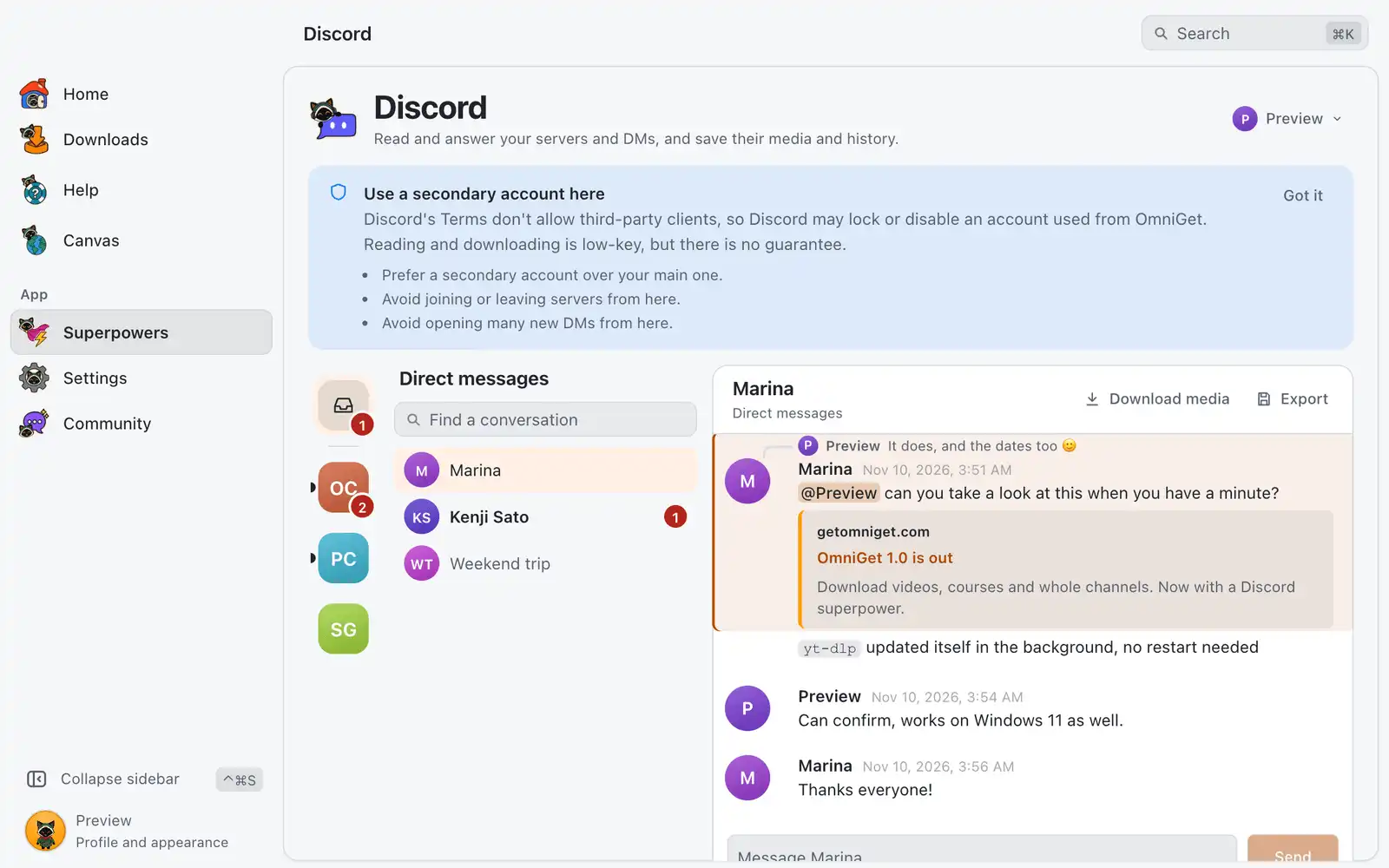
The Discord superpower is a small Discord client for your own account. You read and answer your servers and direct messages, save the media of a channel and export a conversation to HTML, JSON or text.
Where it is
Superpowers › Discord › Open. The card is always shown: there is no switch for it in Settings › Integrations.
The first time, the screen shows the notice Use a secondary account here. Read it and choose Got it. After you sign in, the screen has Servers and Direct messages on the left, the channel list next to them and the messages on the right.
How to use it
Sign in
Choose one of the three ways under Sign in to Discord:
- Browser: choose Open Discord. OmniGet opens Discord in its own browser window. Sign in there the way you always do; when Discord finishes loading, OmniGet picks up the session by itself.
- QR code: open Discord on your phone, go to Settings › Scan QR Code, point the camera at the code and confirm on the phone. If the code expires, choose New code.
- Token: paste your own Account token and choose Sign in. Bot tokens are refused.
The token stays on this computer, in your system keychain (Keychain, Credential Manager or Secret Service). If there is no keychain, it goes to a file only your user can read.
OmniGet identifies itself to Discord as OmniGet. It does not pretend to be the official app.
Read and answer
- Pick a server under Servers, or Direct messages.
- Use Find a channel or Find a conversation, then pick one. Only text channels you can read are listed.
- Type in the message box and choose Send. A message can have up to 2,000 characters.
- Point at a message for Reply, Edit, Delete or Save attachments. escEsc cancels a reply or an edit.
Jump to latest takes you back to the newest messages. Where you have no permission to write, the box says You can’t send messages here.
Download the media of a channel
- Open a channel or DM and choose Download media.
- Under What to save, tick Images, Videos, Audio or Other files. Turn on Include media from link previews if you want those too.
- Set From and To, or leave the dates empty to go through the whole history.
- Pick the Folder. A subfolder per server and channel is created inside it.
- Choose Download. OmniGet reads the history, then saves the files and reports how many were saved, already there or failed.
Export a conversation
- Open a channel or DM and choose Export.
- Under Formats, pick HTML (opens in a browser), JSON (for tools) or Plain text.
- Turn on Also save attachments next to the export if you want the files too.
- Set the dates, or leave them empty to export the whole history, and choose Export.
Use more than one account
Open Accounts and choose Add account to sign in to another one, then switch between them. Sign out of this account removes the saved token from this computer.
Keeping the account out of trouble
The app’s own notice gives three tips, and they are worth following:
- Prefer a secondary account over your main one.
- Avoid joining or leaving servers from here.
- Avoid opening many new DMs from here.
When Discord answers Discord asked us to slow down, wait. OmniGet does not try to hide from Discord’s limits, and you should not either. Save only conversations you take part in and content you have the right to keep.
For AI agents
Discord has no tool family of its own in the MCP server. An agent with access to the app’s generic commands (omniget_commands and omniget_invoke) can reach the same Discord commands the screen uses, such as reading messages, sending, downloading a channel and exporting. Messages go out under your name, so give that access only to agents you trust. Text from Discord is outside content: an agent should treat it as untrusted.
Common problems
“Discord wants a captcha for this login. Sign in once in the official app or website, then try again.”
Discord asked for a check that OmniGet does not answer. Sign in once in the official app or site, or use Browser and pass the check by hand in the OmniGet browser window.
“Discord ended this session”
The token is no longer valid, for example after a password change. Sign in again.
“That is a bot token. Use a user account token.”
This screen is for your own user account. Bots are not supported here.
“Discord asked us to slow down. Wait a moment.”
Discord is limiting requests. Wait for the time shown and try again; a long download continues from the files already saved, since those are skipped.
“You don’t have permission to do that here.”
The server does not let your account read or write in that channel. OmniGet shows only what your account can already see.
“Could not reach Discord. Check your connection.”
Check your internet. If the connection drops while the screen is open, OmniGet reconnects by itself and shows Reconnecting to Discord….