Download
Send a file with a code
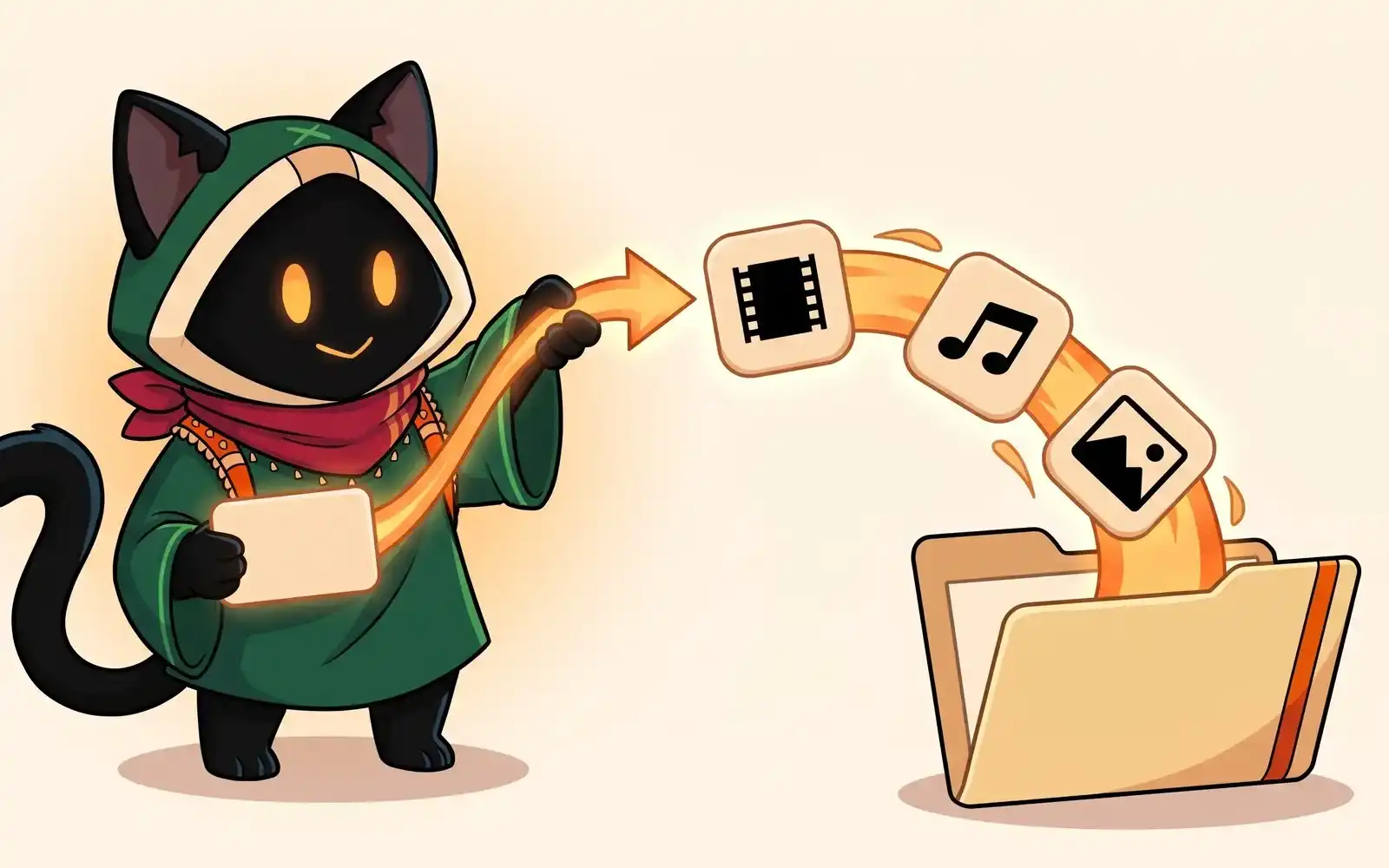
OmniGet can send a file from your computer to someone else who has OmniGet. You get a code made of four words; the other person pastes it in their box on Home and the file goes from your app to theirs.
Where it is
- To send: Home › More ways to download (the button at the left of the box) › Send a file with a code…
- To receive: the Paste a link or search box on Home.
How to use it
Send a file
- Click More ways to download › Send a file with a code…. The Send File via P2P window opens.
- Click Select File and pick the file.
- OmniGet shows a Share Code, such as
p2p:word-word-word-word. Click it to copy it (Click to copy). - Send the code to the other person by any chat or email.
- Keep OmniGet open. The window shows Waiting for receiver…, then Transferring… with the progress and speed, then Transfer complete.
While the file is going out you can Pause and Resume it.
Receive a file
- Copy the code you were sent, including
p2p:. - Paste it in the box on Home and click the download button.
- The Incoming P2P Transfer window opens: Someone wants to send you a file. Accept to start downloading.
- Click Accept & Download to save it to your Default folder, or Decline.
- The transfer appears in the Queue.
How it works
Both apps connect to a relay server, which passes the file from the sender to the receiver. The two computers do not need to reach each other directly, so it works behind most routers.
Options
There are no settings for sending a file. Received files go to Settings › Downloads › Files and folders › Default folder, or OmniGet asks for a folder when Always ask where to save is on.
Common problems
Send failed
The sender could not reach the relay server, or the transfer stopped. Check your connection and click Try Again.
The receiver pastes the code and nothing happens
The code must have the p2p: part and all four words, with hyphens between them. Copy it again from the sender’s window. The sender’s OmniGet must still be open and waiting.
The transfer fails after Accept & Download
The receiving side connects to the relay only after you accept. If the sender closed OmniGet or cancelled the send, there is nobody on the other end. Ask the sender for a new code.