Superpowers
Icons
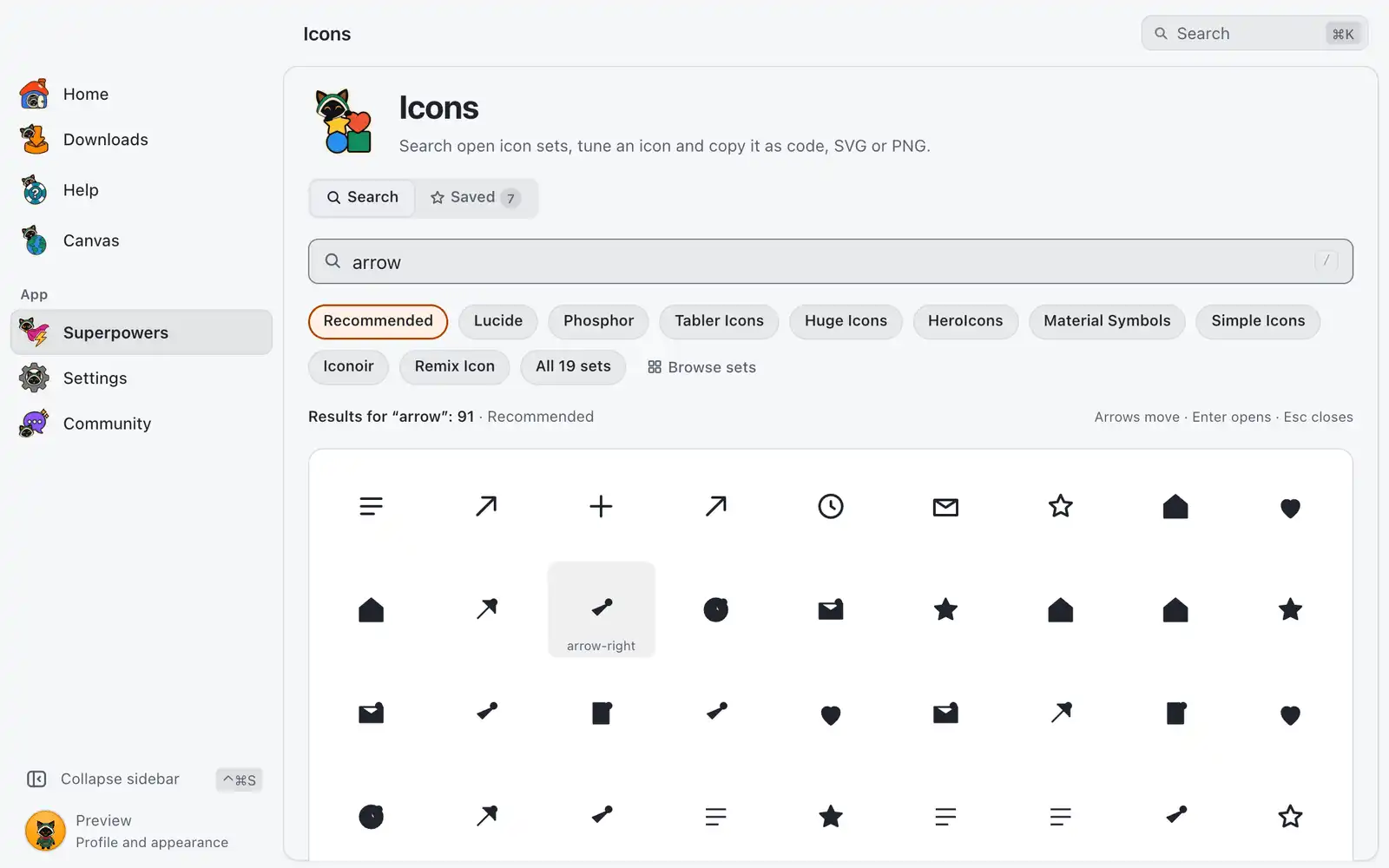
Icons searches 200+ open icon sets at once and lets you adjust an icon before you copy or save it. Icons you save are kept on your computer, so they still work offline.
Where it is
Superpowers › Icons › Open, in the Design category. The card is always shown: there is no switch for it in Settings › Integrations. The page has two tabs, Search and Saved.
Searching needs the internet: results come from the Iconify icon server.
How to use it
- In Search, type a word such as
arrow,homeorgithub. English terms find the most. - Click an icon. Its details open next to the results.
- Under Adjust, set the Color, Size and Stroke, and rotate or flip it.
- Under Copy as, click Copy SVG, Svelte, React or CSS, or use Save SVG or Save PNG.
- Click Add to favorites or Add to collection… to keep it.
Search
Results start with the Recommended scope, 9 sets that include Lucide, Phosphor and Tabler. Switch to All sets to search everything, or click Browse sets to tick the sets you want; the list is grouped by kind (Interface, Material, Brands and logos, Emoji, Flags and others) and has a Filter sets field. One search covers at most 12 selected sets; the page says how many were left out.
Load more icons brings the next batch. A search can be up to 100 characters long.
Each set shows its license: Open, Credit required, Copyleft, Restricted or Check terms. Read it before you use an icon in a product.
Icon details
The Preview shows the icon on a light and a dark background.
| Option | What it does | Default |
|---|---|---|
| Color | Current color keeps currentColor, so the icon follows your text color. Custom sets a fixed one. |
Current color |
| Size | Width and height in px, from 8 to 1024. | 24 |
| Stroke | Line thickness. It can only change on outline icons. | The set’s own |
| Rotate and flip | Rotate 90 degrees, Flip horizontally, Flip vertically. |
None |
Reset undoes the adjustments. A set with its own colors keeps them; a custom color only changes the parts that use the current color.
Copy as gives the SVG, a Svelte component, a React component or a CSS background. You can also copy the Iconify id, and Copy command copies the install command of the set’s npm package when OmniGet knows one. Save as file writes an SVG or a PNG at the PNG size you pick.
More from the same set lists similar icons below.
Saved
Favorites holds the icons you starred. New collection creates a named group, such as one per project; a collection can be renamed or deleted. Saved icons keep their SVG on your computer.
For favorites or any collection:
- Export SVG files writes one file per icon to a folder.
- Export sprite writes one SVG file with a symbol per icon.
You can keep up to 200 collections and 5,000 saved icons.
At the bottom, Offline icon cache shows how much space the cache uses. It keeps set lists and icons you opened so they load without internet. Clear icon cache empties it and does not remove saved icons.
Shortcuts
These work in the results grid.
| Keys | What they do |
|---|---|
| ↓ | From the search field, move into the results |
| Arrow keys | Move between icons |
| ↩Enter | Open the icon |
| escEsc | Close the details |
Common problems
“Can’t reach the icon server”
Check your internet connection and click Try again. If you use a proxy, check it in Settings. Favorites and collections still work offline, and icons you already opened still load.
No icons match
Try a shorter word or an English term, or click Search all sets.
Stroke cannot be changed
The icon is not an outline icon, so it has no stroke width to change.
“This set has no npm package we know of”
Use the SVG or the Iconify id instead of the install command.
A file with that name already exists
Saving does not replace files. Pick another name.