Superpowers
Transfer
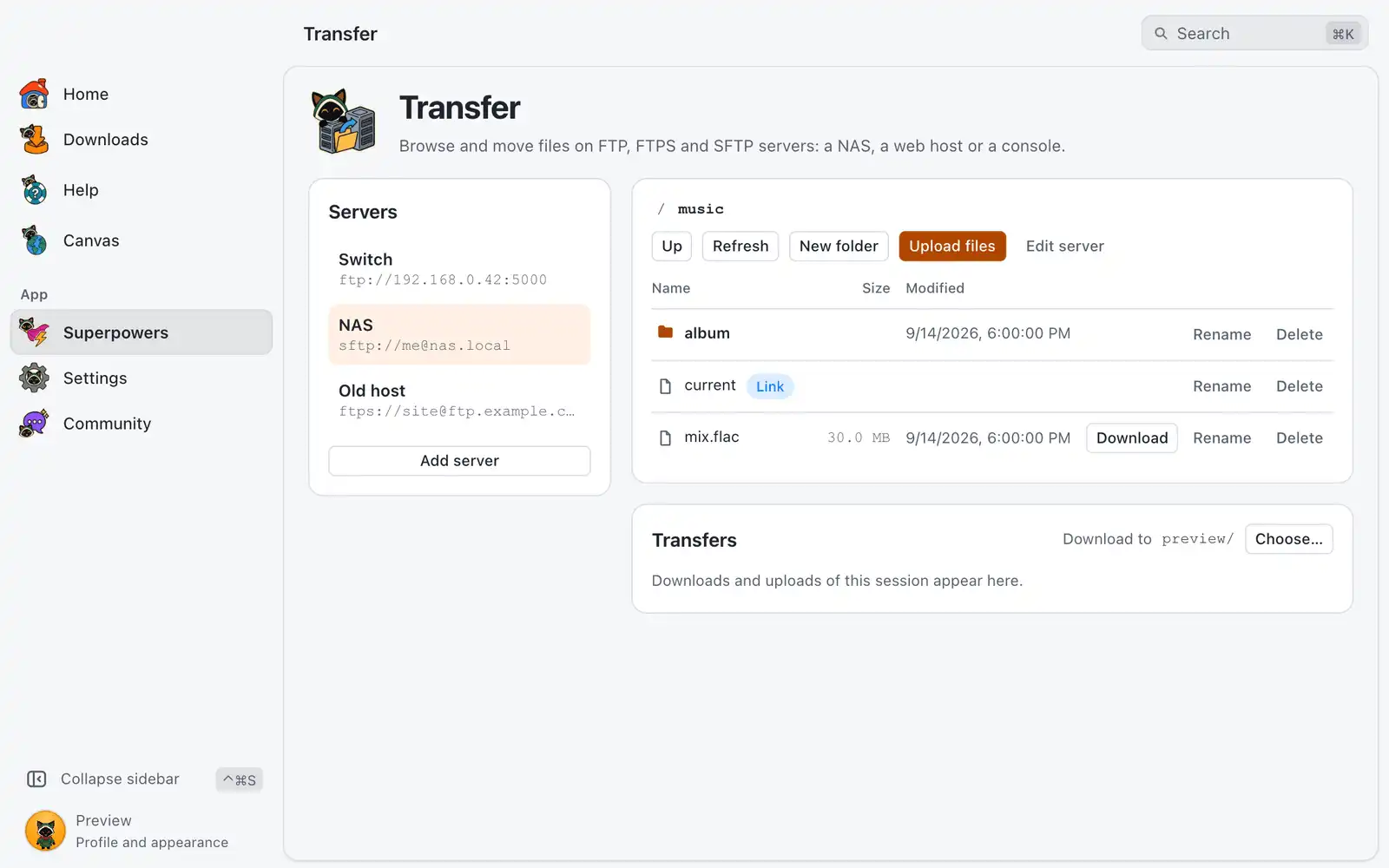
Transfer is a file client for FTP, FTPS and SFTP servers: a NAS at home, a web host, or a console running an FTP server. You save a server once, then browse its folders and move files in both directions.
Where it is
Superpowers › Transfer › Open, in the System category. The card is always shown: there is no switch for it in Settings › Integrations. The page has Servers on the left, the folder of the chosen server in the middle, and Transfers below it.
How to use it
Save a server
- Click Add server.
- Fill in the form (see the table below) and click Save. OmniGet connects and opens the start folder.
To change a server later, click Edit server. The form also has Remove server, which deletes the server and its saved password.
Browse and move files
- Click a server in Servers.
- Click a folder to open it. The path at the top is clickable, Up goes to the parent folder and Refresh reads the folder again.
- Click Download on a file. It goes to the folder shown in Download to, which starts as your downloads folder.
- Click Upload files and pick one or more files to send them to the folder you are in.
- Follow the progress under Transfers. A finished download has Show in folder.
New folder creates a folder here. Each row has Rename and Delete. Delete asks first, removes one file or one empty folder, and cannot be undone.
A filter field appears when a folder has more than 8 entries. A folder shows its first 200 entries and says when there are more.
Options
| Option | What it does | Default |
|---|---|---|
| Name | What you call the server, like a room or a site name. It cannot be changed after saving. | |
| Protocol | FTP (not encrypted), FTPS (FTP over TLS) or SFTP (over SSH). | |
| Host | The server’s name or address. | |
| Port | The port to connect to. | 21 for FTP and FTPS, 22 for SFTP |
| User | The account name. Leave it empty for anonymous FTP. | Empty |
| Password | The account password. When you edit a server, empty keeps the saved one. | |
| Private key file | SFTP only: a key file to sign in with, such as ~/.ssh/id_ed25519. Key passphrase is for a key that has one. |
Empty |
| Start folder | The folder opened first. | The login folder |
You can save up to 100 servers.
Passwords and trust
The password is kept in your computer’s secure storage and is never shown again, in the app or to an agent.
OmniGet remembers the key of each SFTP server and the certificate of each FTPS server. If it changes later, the connection is refused, because that can mean another machine is answering in the server’s place. Trust the new key accepts it; do this only if you know the server was reinstalled or replaced.
Transfers
Transfers lists the downloads and uploads of this session, up to 20, each as Downloading, Uploading, Done or Failed. Up to 4 transfers run at once. Dismiss takes a finished one off the list.
A transfer never replaces a file by itself. When a file with the same name is already there, the transfer fails and offers Replace it. Folders are not uploaded or downloaded as a whole: move the files inside them.
For AI agents
The MCP server has five tools for the same servers:
| Tool | What it does |
|---|---|
transfer_servers |
Lists the saved servers without their passwords, saves or removes one, and forgets a host key after it changed. |
transfer_list |
Lists one folder: name, kind, size and date. |
transfer_get |
Downloads one file to a local path. |
transfer_put |
Uploads one local file. |
transfer_manage |
Creates a folder, renames, or deletes one file or one empty folder. |
A tool never takes a password: you type it once in this screen. Without a saved server, an agent can only reach anonymous FTP or an SFTP server with a key file that has no passphrase. transfer_get and transfer_put do not replace files unless the agent passes overwrite=true; a long transfer answers with a transferId to check again. transfer_manage only describes a delete unless confirm=true, and nothing is deleted recursively.
Reading needs the transfer_read permission; transfer_put and transfer_manage need transfer_write. From a terminal, omniget-cli tool transfer_servers op=list calls the same tool while the app is running. See Command line.
Shortcuts
| Keys | What they do |
|---|---|
| escEsc | Close the delete question, the rename field or the new folder field |
Common problems
The sign-in failed
The user, password or key is wrong. Click Edit server on the error, type the password again and save.
The server cannot be reached
Check the host, the port and that the server is on. OmniGet waits up to 15 seconds to connect.
The server’s key changed
See “Passwords and trust” above. If you did not change the server, do not accept the new key.
A folder cannot be deleted
Only empty folders are deleted. Remove what is inside first.
Some lines of the listing could not be read
The server’s listing has lines in a format OmniGet does not know. The page says how many were skipped; the other entries are shown.