Superpowers
Studio
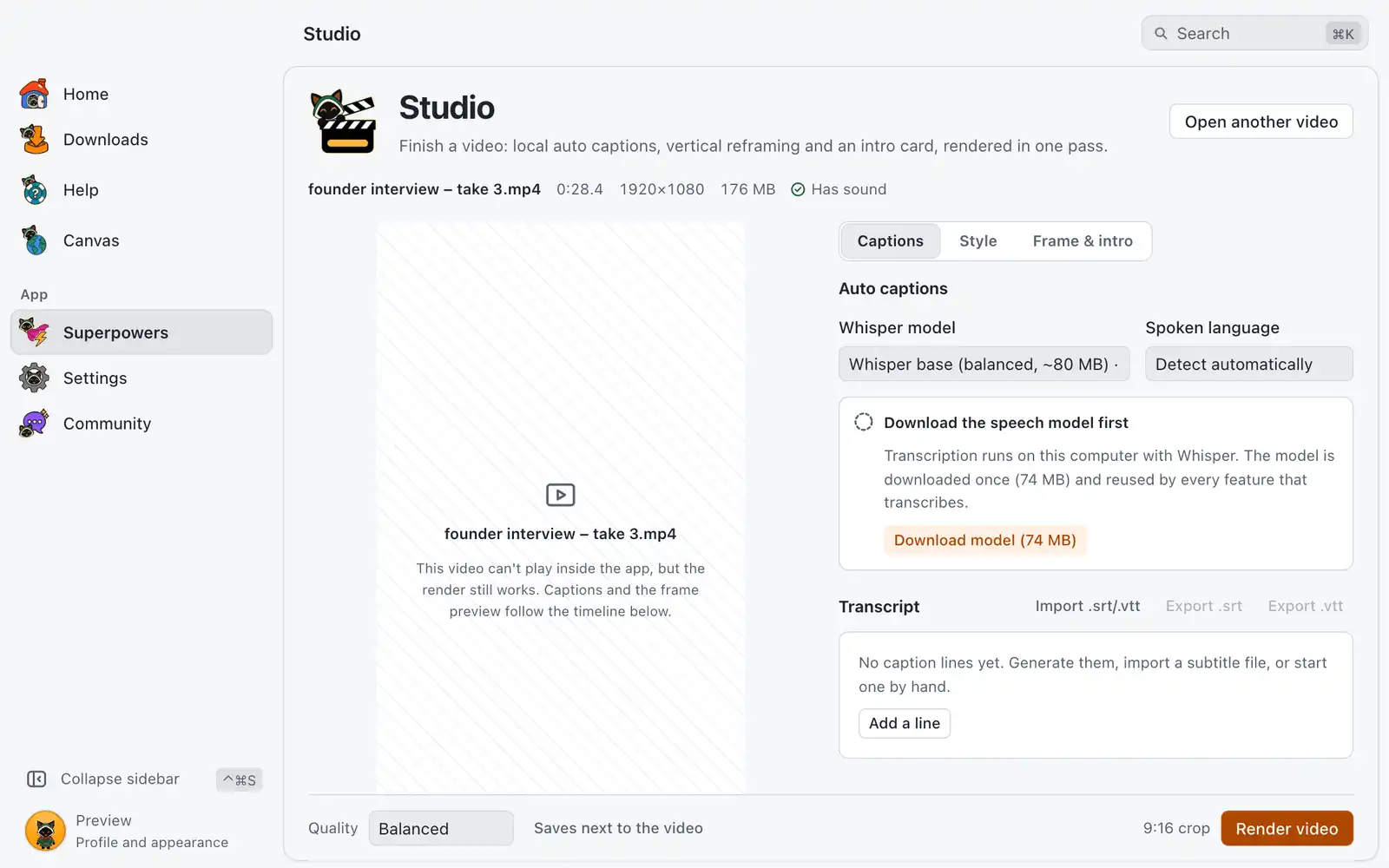
Studio finishes a video in one pass: it adds captions, changes the shape of the frame and puts a title card at the start. It reads and renders on your computer, nothing is uploaded, and the original file is not changed.
Where it is
Open Superpowers in the sidebar and choose the Studio card. The card is always shown: there is no switch for it in Settings › Integrations › Superpowers. The page has three tabs: Captions, Style and Frame & intro.
Studio needs FFmpeg. See Dependencies.
How to use it
- Drop a video on the page, or click Choose video.
- In Captions, click Generate captions, or use Import .srt/.vtt, or Add a line to write them by hand.
- Read the lines and fix what is wrong.
- In Style, pick a look. The preview shows the result.
- In Frame & intro, choose the shape and, if you want, an intro card.
- Click Render video.
- Click Play video or Show in folder.
The new file is an MP4 next to the original, with (studio) in its name. It never replaces another file. Stop ends a render and removes the partial file, and your edits stay on the page.
Captions
Auto captions transcribes the sound on your computer with Whisper. The first time, click Download model. The model is downloaded once and reused by every feature that transcribes. Generate captions replaces any lines already in the list.
Each line has its own start and end time, and buttons to nudge it earlier or later. Split at cursor, Merge with next, Add after and Delete change the lines themselves. Shift all moves every line at once, for captions that run early or late.
Export .srt and Export .vtt save the lines as a subtitle file. Turn off Burn captions into the video if you only want that file and no text drawn on the picture.
Style
Style presets sets everything at once. You can then change each setting on its own.
| Preset | What it looks like |
|---|---|
| Clean | Plain text with an outline, at the bottom. |
| Bold pop | Large uppercase text in the middle, highlighting each word as it is spoken. |
| Boxed | Text on a solid box. |
| Lower third | Small text on one line, aligned left. |
The settings are Font, Size, Characters per line, Lines on screen, Position, Alignment, Bold, Uppercase, Highlight each word as it’s spoken, Box behind text, the colors, Outline (Box padding when the box is on) and Shadow.
Word timing is estimated from each line, so the highlight may lead or trail a little.
Frame and intro
Output shape is Original, 9:16, 1:1 or 4:5. For a new shape, How to fill the frame has two choices:
- Crop fills the frame and cuts the sides. Crop position moves the part you keep, from Left to Right.
- Fit with blur shows the whole picture over a blurred copy.
Add an intro card puts a card with a Title and a Subtitle before the video. A card with neither is left out. Show in preview shows it in the player.
Options
| Option | What it does | Default |
|---|---|---|
| Whisper model | Which speech model transcribes. The list shows each size. | Whisper base |
| Spoken language | The language of the video. | Detect automatically |
| Burn captions into the video | Draws the captions on the picture. | On |
| Style presets | The look of the captions. | Bold pop |
| Output shape | The shape of the finished video. | 9:16, or Original for a vertical video |
| How to fill the frame | Crop or Fit with blur. | Crop |
| Fade to black at the end | Fades out the last moments. | Off |
| Add an intro card | Adds the card at the start. | Off |
| Length | How long the card stays, from 1 to 10 seconds. |
3 seconds |
| Fade in and out | Fades the card. | On |
| Quality | Fast, smaller file, Balanced or High, larger file. | Balanced |
| Saves next to the video | Click it to choose another folder. Save next to the video goes back. | Next to the video |
Shortcuts
These work when the preview has focus.
| Keys | What they do |
|---|---|
| Space | Play or pause |
| ← / → | Move one second |
| ⇧←Shift+← / ⇧→Shift+→ | Move further |
Common problems
“Local transcription isn’t available on this system”
The speech engine has no build for this computer. Import an .srt or .vtt file, or write the lines by hand.
“No speech was found in this video.”
Pick another Spoken language, or write the lines by hand.
“This video has no sound”
There is nothing to transcribe. Import an .srt or .vtt file, or add lines by hand.
“This video can’t play inside the app”
The render still works. Captions and the frame preview follow the timeline.
“This FFmpeg build can’t draw captions” or “can’t draw text”
Your FFmpeg lacks a part Studio needs: libass for captions, drawtext for the intro card. Install the FFmpeg that OmniGet manages from Dependencies. You can still export .srt and .vtt without it.
Render video is greyed out
Read the line next to the button. Either FFmpeg is missing, a transcription or model download is still running, or there is nothing to change: turn on captions, pick a new shape, or add an intro or a fade.
“The render stopped”
Nothing was saved. Change the settings mentioned in the message, or try Fast, smaller file, then click Render again.