Superpowers
Palette
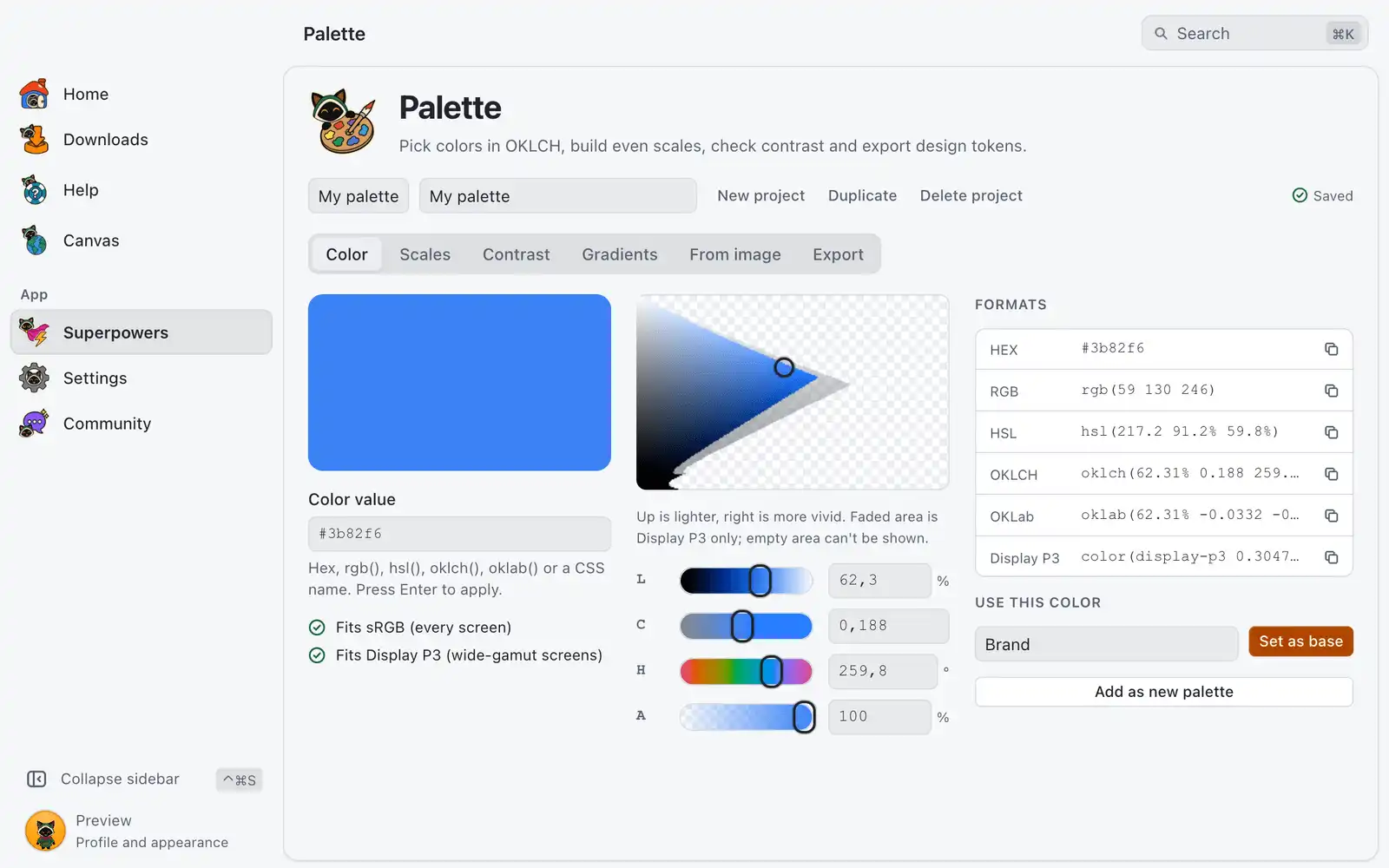
Palette is a color workshop: you pick a color, turn it into a scale, check that text is readable on it and export the result as code. Your work is kept in projects that are saved on your computer as you go.
Where it is
Superpowers › Palette › Open, in the Design category. The card is always shown: there is no switch for it in Settings › Integrations. The page has six tabs: Color, Scales, Contrast, Gradients, From image and Export.
How to use it
- The first time, click Create project. A project holds your palettes, contrast pairs and gradients, and starts with 6 ready scales: Brand, Neutral, Accent, Success, Warning and Danger. You can also pick Import a JSON file instead.
- Open Color, type or pick a color, then click Set as base to rebuild one of your palettes from it, or Add as new palette.
- Open Scales to adjust each palette, Contrast to test text on a background, and Gradients if you need one.
- Open Export, pick a format, then click Copy code or save the file.
The bar above the tabs switches between projects and has New project, Duplicate and Delete project. Changes are saved by themselves; the bar shows Saving…, Saved or Not saved with Save again. After you delete a project or a palette, a notice with Undo stays for a few seconds, and ⌘ZCtrl+Z does the same.
Color
Type a value in the field and press ↩Enter. It reads hex, rgb(), hsl(), oklch(), oklab() and CSS color names. The sliders are Lightness, Chroma, Hue and Opacity, and the plane next to them shows lightness and chroma for the current hue.
Gamut tells you where the color can be shown: sRGB (every screen), Display P3 (wide-gamut screens) or neither. When a color is outside sRGB, Fit to sRGB lowers the chroma and keeps lightness and hue. Under Formats you copy the color in each notation.
Scales
Each palette is a scale of 11 steps, from 50 to 950, with even lightness, built from one base color. Click a step to open it in Color.
- Palette name and Token name label the palette. The token name is what exports use, like
--brand-500. - Hue drift shifts the hue along the scale.
- Harmonies adds palettes with the same lightness and chroma at related hues: Complementary, Analogous, Triadic or Tinted neutral.
- Gamut for scales chooses sRGB or
Display P3for the whole project. - Add palette creates a new one; the arrows and the remove button on each palette change the order or take it out.
Contrast
Set Text and Background by hand or with Pick from palettes…. The page shows a sample, the WCAG 2 ratio with a pass or fail for normal and large text at AA and AAA, and the APCA contrast value with a line saying what that level is good for.
Fix contrast suggests the nearest color that reaches a goal. Choose Change text or Change background, pick the goal, and click Use this text color or Use this background. Only lightness moves; hue and chroma stay.
Contrast matrix crosses every step of one palette as text against every step as background. Click a cell to check that pair above.
Gradients
Add colors under Stops (a gradient needs at least two), or click Use first two palettes. Set the Easing, the Angle and the Steps per segment, between 2 and 24.
Gradient in each color space draws the same stops in OKLCH, OKLab and sRGB so you can compare them. sRGB often turns gray or dark in the middle; click a row to use that space. Copy CSS gives a gradient that works in every browser, with the color space and easing baked into extra stops. Copy native CSS is shorter, needs a browser with CSS Color 4 interpolation, and ignores the easing.
From image
Drop a photo or screenshot on the page, or click Choose image. The image is read on your computer and is not uploaded. Colors sets how many main colors to find, from 4 to 12, and each one shows its share of the image. Then add them as palettes or click Make a gradient.
Dropping an image anywhere on Palette opens this tab.
Export
| Format | What you get |
|---|---|
| CSS variables | Custom properties in hex, with oklch() values for browsers that support them. |
Tailwind v4 |
An @theme block, so classes like bg-brand-500 work right away. |
| Design tokens | Design tokens JSON in the DTCG format that Style Dictionary and Tokens Studio can read. |
| SCSS | Sass variables and one map per palette. |
| Palette JSON | The whole project, to import again here or on another computer. |
Import JSON brings in a Palette JSON or a design tokens file as a new project; nothing you have is replaced. The file can be up to 8 MB.
Shortcuts
| Keys | What they do |
|---|---|
| ↩Enter | Apply the value typed in the color field |
| ⌘ZCtrl+Z | Undo the last delete while its notice is on screen |
| ← / → | Move between tabs when a tab has focus |
Common problems
“Not a color”
The field could not read the value. Use a hex value, rgb(), hsl(), oklch(), oklab() or a CSS name.
The color looks duller on another screen
It is outside sRGB. Check Gamut in Color and click Fit to sRGB, or set Gamut for scales to sRGB.
“No colors were found in this file”
An imported design tokens file needs color groups, like color.brand.500. A file that is not a Palette project or a tokens file is refused.
A notice says the saved palettes file was moved
The file was damaged, so OmniGet moved it aside to the path shown and started a fresh one. Nothing else was changed.