Superpowers
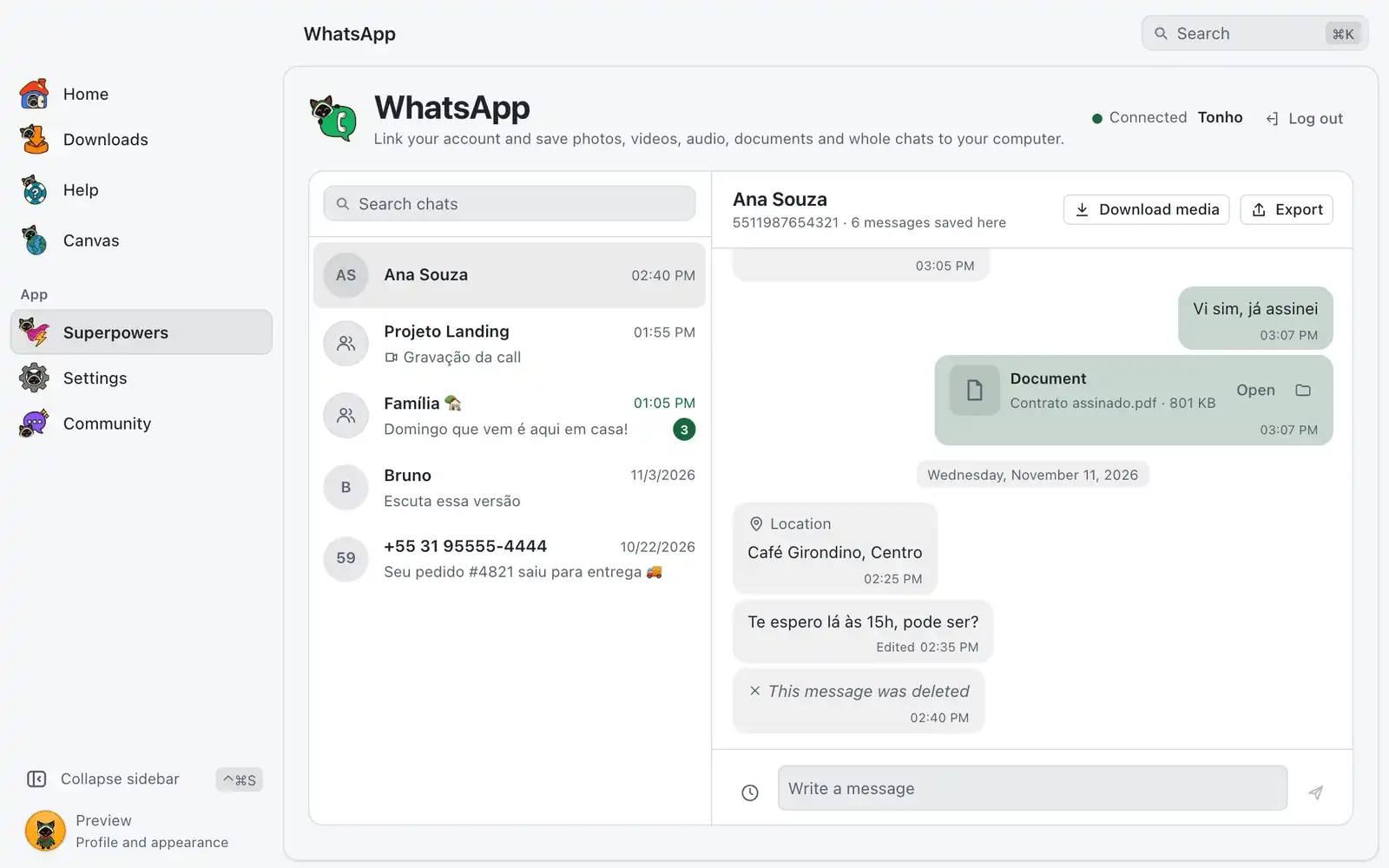
The WhatsApp superpower links your own account to OmniGet as a linked device, the same way WhatsApp Web does. You read your chats, save their media to your computer, export a conversation and send or schedule text messages.
Where it is
Superpowers › WhatsApp › Open. The card is always shown: there is no switch for it in Settings › Integrations.
Before you link, the screen shows Link your WhatsApp. After that it shows Chats on the left and the open chat on the right, with your account name, Reconnect and Log out at the top.
How to use it
Link your account
- Open WhatsApp in OmniGet and choose QR code or Phone number.
- With QR code, choose Show QR code. On your phone, open WhatsApp, go to Settings › Linked devices › Link a device and point the camera at the code. If it expires, choose Get a new QR code.
- With Phone number, type the number with its country code and choose Get pairing code. On your phone, choose Linked devices › Link a device › Link with phone number instead and type the code.
- Wait for your chats. Right after linking, your phone sends the recent history, which can take a few minutes with the phone online.
Your phone stays the main device. The session and the copy of your messages stay only on this computer, and logging out deletes both.
Read a chat
- Use Search chats or pick a chat in Chats.
- Scroll up and choose Show older messages for what is already saved here.
- Choose Ask the phone for older messages when the saved history ends. Older messages show up when the phone sends them.
Only what your phone shared with this computer appears. A chat shows how many messages are saved here.
Download media
- Open a chat and choose Download media.
- Under What to download, tick Photos, Videos, Audio and voice messages, Documents or Stickers.
- Under Save to, choose a folder. OmniGet creates a
WhatsApp/<chat name>folder inside it and skips files already saved. - Choose Download. Stop ends it, and the summary says how many files were saved, already saved or failed.
You can also save one file from its message, then Open it or Show in folder.
WhatsApp keeps media on its servers only for a while. For older files OmniGet asks your phone to send them again and waits up to 45 seconds, so keep the phone online. Files the phone no longer has cannot be recovered.
Export a chat
- Open a chat and choose Export.
- Pick the Format: Text (.txt) (the same layout as WhatsApp’s own export), Web page (.html) (chat bubbles, with photos you already downloaded shown inline) or Data (.json) (every field, for scripts and other tools).
- Choose Export… and pick where to save.
The export has the messages saved on this computer. Download the media first if you want the files linked.
Send and schedule a message
- Type in Write a message and choose Send. You need to be connected.
- To send later, choose Schedule, set Send at (it starts 15 minutes ahead) and confirm.
- Scheduled messages are listed above the box under Scheduled messages. Choose Cancel scheduled message to drop one.
Only text can be sent from here. Scheduled messages go out from this computer, so OmniGet has to be open and connected at that time.
Log out
Choose Log out and confirm Unlink this computer and delete the local copy?. The session and the local copy of your chats are deleted. You can also remove OmniGet from Linked devices on your phone.
For AI agents
Agents connected through the MCP server get the wa_* tools, split in two permissions:
- Read your WhatsApp chats and messages, and follow new ones live:
wa_status,wa_find,wa_messages,wa_wait(waits for new messages as they arrive) andwa_scheduled. - Send and schedule WhatsApp messages under your name, mark chats as read and show typing:
wa_send(now or at a set time),wa_schedule_cancel,wa_mark_readandwa_typing.
Agents cannot download media or export chats with these tools, and they never see the session itself.
Common problems
“The QR code expired. Get a new one to try again.”
Codes last a short time. Choose Get a new QR code and scan it right away, or switch to Phone number.
The chat list stays on “Waiting for your chats”
The history comes from your phone. Keep the phone online with WhatsApp open for a few minutes.
“Offline. OmniGet keeps trying to reconnect”
What is already saved stays available. Check your internet, or choose Reconnect.
“Another OmniGet window or device took over this session.”
The same linked session was opened somewhere else. Close the other one and choose Reconnect.
“WhatsApp temporarily blocked this account. Wait before trying again.”
WhatsApp decides this, and OmniGet cannot change it. Wait before you try again, and avoid sending many messages in a short time, by hand or through an agent.
“Your phone no longer has this file, so it can’t be recovered.”
The file left WhatsApp’s servers and the phone deleted its copy. There is no other source for it.
“WhatsApp says this version is outdated. Update OmniGet.”
Install the latest OmniGet from /download and link again if asked.