Canvas
Omni, the companion
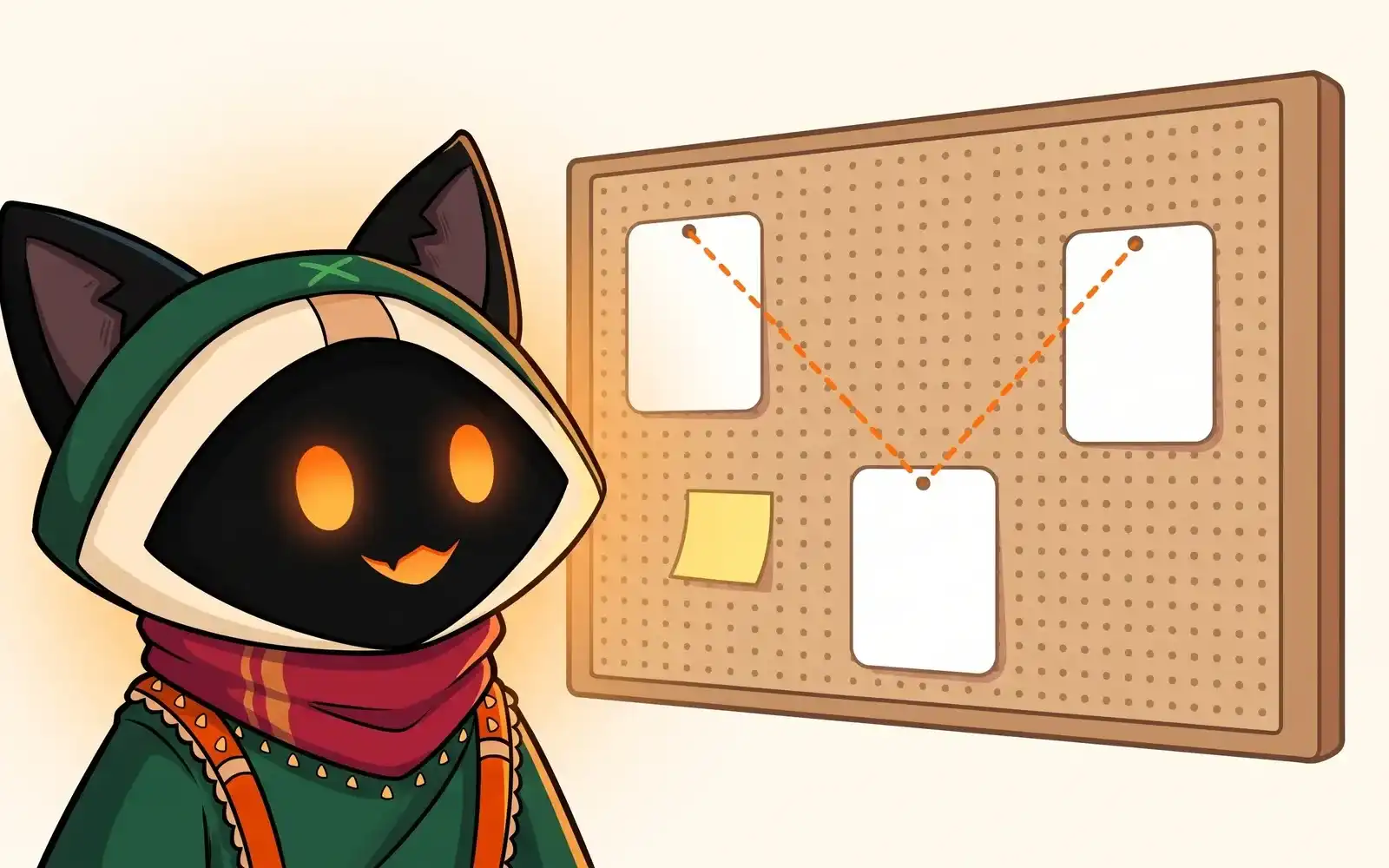
Omni is a small companion that watches your agents while you do something else and speaks up when one finishes, gets stuck or fails. It lives in a floating Omni window and, if you want, as a pet on your desktop that also answers the agents’ permission requests.
Where it is
- The Omni window: press ⇧⌘OCtrl+Shift+O anywhere while OmniGet is running. On the Canvas, the Omni button in the toolbar and Ombro in Batuta Search open the same panel.
- The desktop pet: Settings › Integrations › Desktop pet. It is off by default.
How to use it
The Omni window
- Press ⇧⌘OCtrl+Shift+O. A small window opens on top of your other windows. Press it again, or click Hide (⌘⇧O), to hide it.
- Pick the Workspace to watch.
- Wait. When an agent finishes a real piece of work, waits for you or hits an error, Omni writes a short line about it, for example “Reviewer is waiting for you.” Dismiss clears a line.
- To ask something, pick an Agent and click Ask Omni, or type in Question for Omni (“what is B doing?”) and click Ask.
The desktop pet
- Open Settings › Integrations › Desktop pet and turn on Show Omni on the desktop. Omni appears in the corner of the screen.
- Right-click Omni for its menu:
- Say hi makes it wave.
- Open the hub brings OmniGet to the front on the LLM page.
- Corner moves it to Top left, Top right, Bottom left or Bottom right.
- Hide Omni closes the pet and turns the setting off.
- When an agent asks permission to use a tool, Omni shows Allow this tool? with the tool’s name. Click Omni (Click Omni to choose), then Allow, Always or Deny. If several requests wait, Omni shows how many more are queued.
The pet comes back on its own the next time OmniGet starts, until you hide it.
Options
Desktop pet (Settings › Integrations › Desktop pet)
| Option | What it does | Default |
|---|---|---|
| Show Omni on the desktop | Shows the pet in a transparent window that stays on top. | Off |
| Let clicks pass through Omni | Clicks go to the window under Omni. While a permission request waits, Omni takes clicks again so you can answer. | Off |
| Corner | Where the pet sits. | Bottom right |
Omni panel (Settings in the Omni window)
| Option | What it does | Default |
|---|---|---|
| Watch the agents | Turns Omni’s messages on or off. | On |
| Show in the floating Omni | Shows the messages next to the desktop pet too. | On |
| Finished, Needs you, Failed | Which events Omni speaks about. | All on |
| Speak after at least (seconds of work) | Omni ignores turns shorter than this. | 60 |
| Model | What writes the messages: Local first, then the cheap agent, Local only (Ollama), Cheap agent only or No model. Without a model, Omni writes a plain summary. | Local first, then the cheap agent |
| Local model | The Ollama model to use. | Smallest installed |
| Without a local model, ask an installed agent CLI (cheapest model, no tools) | Lets Omni use an agent CLI you already have, with its cheapest model and no tools. | On |
Shortcuts
| Action | Keys |
|---|---|
| Show or hide the Omni window, from anywhere | ⇧⌘OCtrl+Shift+O |
This shortcut is global and cannot be remapped. If another app already uses it, OmniGet cannot register it; open the panel from the Canvas instead.
Common problems
“Your desktop cannot show a transparent window, so Omni stays inside OmniGet.”
Your system or desktop environment cannot draw transparent windows, so the pet is not available. The Omni window and the Canvas panel still work.
“Ollama is not running or has no model”
Omni falls back to a summary without a model. Start Ollama and pull a model, or set Model to Cheap agent only.
Omni never says anything
Check that Watch the agents is on and that the agent worked for longer than Speak after at least (seconds of work).