Superpowers
Dictation
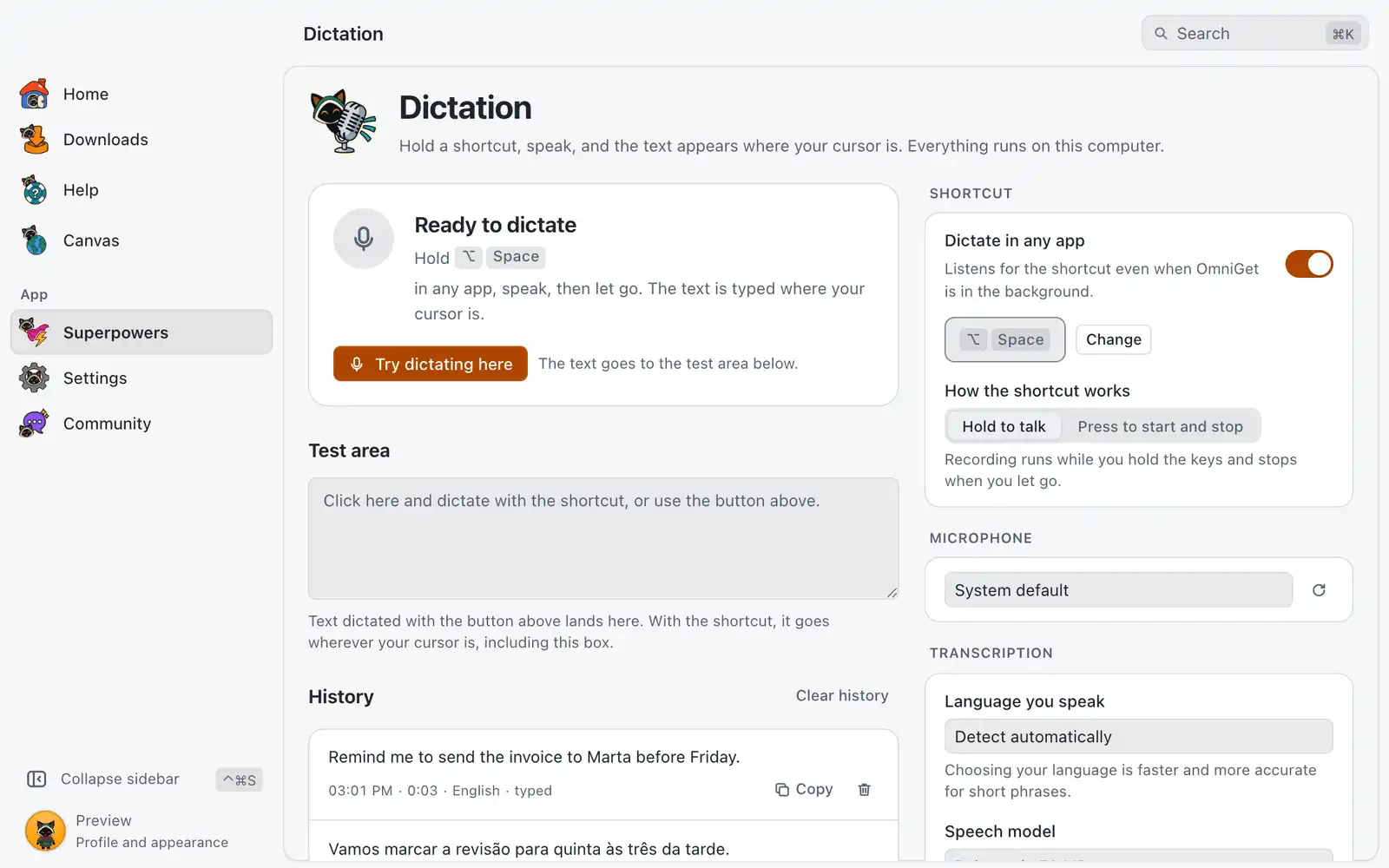
Dictation turns your speech into text: you hold a shortcut, speak, and the text appears where your cursor is, in any app. The speech model runs on your computer, so after one download it works offline.
Where it is
Open Superpowers in the sidebar and choose the Dictation card. The card is always shown: there is no switch for it in Settings › Integrations › Superpowers. The settings are on the same page and save by themselves.
How to use it
First time
The page opens with Two things before your first dictation:
- Audio recorder (ffmpeg): OmniGet records the microphone with FFmpeg. If it is missing, install it from Dependencies.
- The speech model: click Download model. This happens once and needs the internet. The speech engine is downloaded with it if your computer does not have it yet.
Try it on the page
- Click Try dictating here and speak.
- Click Stop and transcribe, or Cancel to throw the recording away.
- The text lands in the Test area.
Dictate in any app
The shortcut is off until you turn it on.
- Turn on Dictate in any app. It listens for the shortcut even when OmniGet is in the background.
- Click into the app where you want the text.
- Hold the shortcut, speak, and let go. By default that is ⌥SpaceCtrl+Alt+Space.
To copy a past dictation, use History. Copy puts it on the clipboard, the delete button removes one, and Clear history asks before removing them all.
Options
Shortcut
| Option | What it does | Default |
|---|---|---|
| Dictate in any app | Listens for the shortcut in every app. | Off |
| Current shortcut | Change records a new combination, Use default goes back. | ⌥SpaceCtrl+Alt+Space |
| How the shortcut works | Hold to talk records while you hold the keys. Press to start and stop records between two presses, and escEsc throws the recording away. | Hold to talk |
Microphone and transcription
| Option | What it does | Default |
|---|---|---|
| Microphone | Which microphone records. | System default |
| Language you speak | Choosing your language is faster and more accurate for short phrases. | Detect automatically |
| Speech model | Fast, Balanced or Accurate. The list shows each size. A model that is not downloaded yet needs a one-time download. | Balanced |
After you speak
| Option | What it does | Default |
|---|---|---|
| Type into the app or Only copy | Type into the app pastes the text where your cursor is. Only copy puts it on the clipboard for you to paste. | Type into the app |
| Keep what was on my clipboard | Puts back the text you had copied before, right after typing. | On |
Clean up the text
| Option | What it does | Default |
|---|---|---|
| Capitalize sentences | Starts each sentence with a capital letter. | On |
| Remove filler words | Takes out sounds like “um” and “uh”, and words like “like” when a pause follows them. | On |
| Replacements | Fixes words the model gets wrong, like names. When it hears matches whole words and ignores case, and Write is the text it becomes. | Empty |
Type a phrase in Try your cleanup rules to see what your rules do to it.
Length and history
| Option | What it does | Default |
|---|---|---|
| Longest recording | Recording stops by itself after this long and the text is transcribed. Choose from 30 seconds, 1 min, 2 min, 5 min or 10 min. |
2 min |
| Keep a history | Saves your last 200 dictations on this computer. |
On |
Common problems
“Copied, but not typed”
The text is on your clipboard, so you can paste it yourself. To fix the typing:
- macOS: allow OmniGet in System Settings › Privacy & Security › Accessibility (Open Accessibility settings). If macOS asks about System Events, allow it in Automation (Open Automation settings).
- Linux: install
wtypeon Wayland orxdotoolonX11. Until then, the text is only copied.
“That was a quick tap. Keep the shortcut held down while you speak.”
With Hold to talk, recording lasts only while the keys are down. Hold them for the whole phrase, or switch to Press to start and stop.
No microphone found, or the microphone did not start
Connect a microphone, or allow OmniGet to use it (Open microphone settings). Another app may also be using it. If the list shows a microphone as not connected, dictation fails until you connect it or pick another.
“No sound reached the microphone”
The recording was silent. Check that the right Microphone is selected and that OmniGet is allowed to use it.
“No words were recognized”
Speak closer to the microphone, or pick your language in Language you speak instead of Detect automatically.
A shortcut is refused
The combination needs one regular key plus Ctrl, Alt or Cmd. It also cannot be one that the system, another OmniGet shortcut or another app already uses. The page tells you which of these it is.
“Local transcription is not available”
The speech engine has no build for this system, so dictation cannot run on it.